In the latest updates of Microsoft Dynamics 365 Business Central, you can now store pictures for Item Variants, making it easier to visually differentiate product options such as color, size, or style.
This enhancement improves usability for sales teams, warehouse staff, and product managers by allowing quick identification of product variations directly from the system.
Why This Feature is Useful
Many companies manage products with multiple variants, for example:
T-shirts with different colors
Jewelry with different metal types
Shoes with different sizes
Previously, variants were identified mainly through codes or descriptions. Now you can attach variant-specific images, making it easier to visually confirm the correct option.
Example:
Item
Variant
Image
Ring
Gold
Gold ring image
Ring
Silver
Silver ring image
This helps reduce order errors and improves product clarity.
How to Add a Picture to an Item Variant
Follow these steps to attach an image to a variant.
1. Open the Item Card
Navigate to the Item Card of the product.
2. Open Variants
Choose the Variants action to view the list of item variants.
3. Select a Variant
Select the variant you want to update and open the Item Variant Card.
4. Add or Manage the Image
On the Picture FactBox, choose one of the following actions:
Where This Feature Helps Most
This feature is particularly valuable in industries with visually distinct variants:
Retail
Fashion
Jewelry
Manufacturing
E-commerce integrations
Warehouse staff can quickly verify the correct variant during picking and packing, reducing mistakes.
Practical Example
Suppose you sell a Bracelet with multiple color options.
Variant Code
Description
Image
BR-GLD
Gold Bracelet
Gold image
BR-SLV
Silver Bracelet
Silver image
BR-BLK
Black Bracelet
Black image
By attaching pictures, users can instantly confirm they are selecting the correct variant.
Summary
The Item Variant Picture feature in Microsoft Dynamics 365 Business Central enhances product management by:
Allowing images for each variant
Improving visual identification
Reducing selection errors
Enhancing user experience
This is a small but powerful improvement that helps organizations manage complex product catalogs more efficiently.
Every major release of Microsoft Dynamics 365 Business Central introduces improvements that impact how developers design, build, and maintain extensions.
Version 28 (2026 Release Wave 1) focuses strongly on performance optimization, platform modernization, and improved developer productivity.
For developers building extensions using AL and Visual Studio Code, several changes require attention during upgrades.
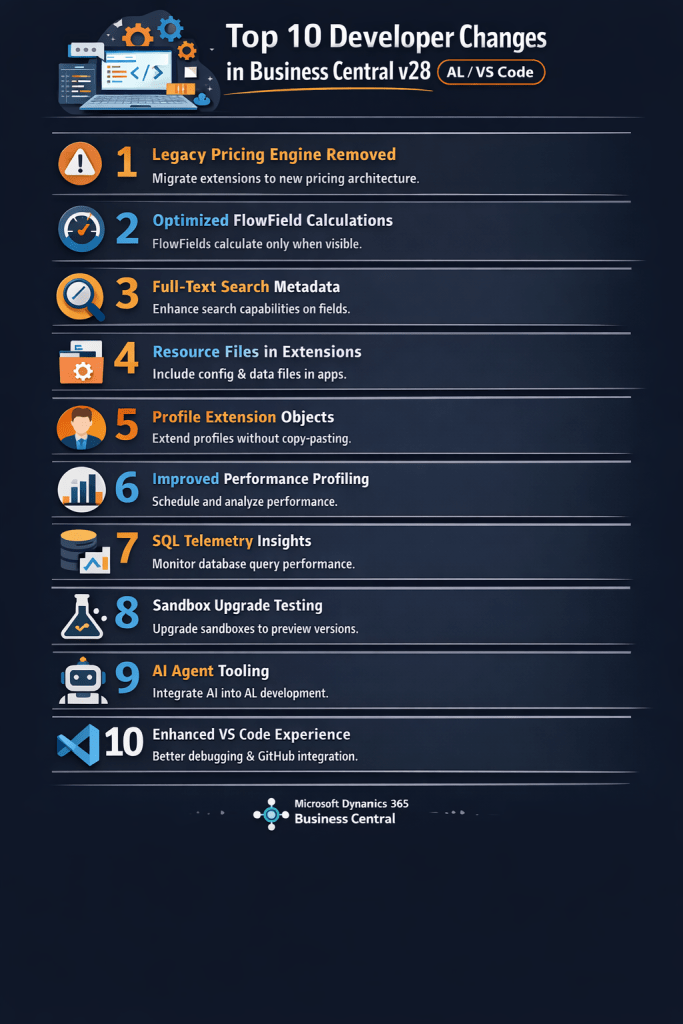
In this article, I will walk through the Top 10 developer changes in Business Central v28 and what they mean for your extensions.
1. Legacy Pricing Engine Removed
One of the biggest platform changes in v28 is the complete removal of the legacy pricing engine.
Microsoft introduced the new Price List architecture in earlier versions, and now it becomes the only supported pricing model.
Developer Impact
Extensions relying on older pricing logic must migrate.
Areas to review include:
custom price calculations
discount logic
pricing-related code units
integrations referencing legacy pricing tables
The new pricing system provides a more flexible framework for managing pricing rules and discounts.
2. FlowField Calculation Optimization
Business Central v28 introduces an important optimization for FlowField calculations.
Previously, FlowFields could be calculated even if they were not visible on the page.
In v28, FlowFields are calculated only when the field is visible in the UI.
Benefits
fewer SQL queries
faster page loading
improved scalability for large datasets
3. Improved Search Metadata
Search and navigation are significantly improved in v28.
Developers can now provide better search metadata that improves how users discover pages, actions, and data.
Why this matters
In large Business Central environments with hundreds of pages and reports, improved search helps users locate functionality much faster.
Developers should review:
page captions
action captions
field descriptions
Clear naming improves search results and usability.
4. Resource Files in Extensions
Another useful improvement in v28 is the ability to include resource files within extensions.
These files can store:
configuration data
templates
initialization data
Benefits
Developers can package configuration data directly with the extension instead of writing complex installation code.
This simplifies deployment and improves maintainability.
5. Profile Extension Objects
Customizing user profiles previously required copying base profiles, which created upgrade issues.
Business Central v28 introduces profile extension objects, allowing developers to extend profiles without duplication.
Advantages
cleaner customization model
easier upgrades
better maintainability
Developers can now modify Role Centers and user experiences in a more structured way.
6. Improved Performance Profiling
Performance troubleshooting becomes easier with new profiling improvements.
Developers can capture performance data to analyze:
long-running AL procedures
page load times
inefficient database queries
Why this matters
In large implementations with many extensions, performance bottlenecks can be difficult to detect.
Profiling tools help developers identify inefficient code earlier.
7. SQL Telemetry Insights
Business Central v28 provides better telemetry insights for database operations.
Telemetry data includes:
SQL query execution time
table interactions
query performance statistics
This information integrates with Microsoft Azure Application Insights.
Developer Advantage
Developers can monitor real production workloads and optimize extensions based on actual usage patterns.
8. Sandbox Upgrade Testing Improvements
Upgrade testing is easier in v28.
Developers can now upgrade existing sandbox environments to preview versions.
Benefits
test extension compatibility earlier
simulate production upgrades
reduce upgrade risks
This is particularly important for partners maintaining multiple customer environments.
9. AI Agent Development Scenarios
Microsoft continues to move toward AI-assisted development workflows.
New tools and integrations enable AI agents to assist developers in tasks such as:
analyzing AL code
generating documentation
improving developer productivity
This aligns with Microsoft’s broader AI strategy across the Dynamics ecosystem.
10. Enhanced VS Code Development Experience
The development experience in Visual Studio Code continues to improve.
Enhancements include:
better debugging capabilities
improved symbol downloads
smoother Git integration
improved navigation in large AL projects
These improvements help developers manage complex extension projects more efficiently.
What Developers Should Prepare for in v28
Before upgrading to Business Central v28, developers should review their extensions carefully.
Key areas to validate include:
pricing logic compatibility
FlowField calculations
performance-sensitive code
search metadata
extension initialization processes
Testing extensions in sandbox environments before production upgrades is strongly recommended.
Business Central v28 continues Microsoft’s focus on modernizing the platform and improving developer productivity.
The most significant changes for developers include:
removal of legacy pricing logic
optimized FlowField calculations
improved telemetry and profiling tools
better development workflows in Visual Studio Code
Microsoft has officially announced pricing changes for Dynamics 365 Business Central, set to take effect on October 1, 2025. This marks the first significant price adjustment in over five years, accompanied by enhanced storage and powerful feature upgrades. Whether you’re an existing customer or considering Business Central for the first time, understanding these changes is crucial for future planning.
New Pricing & Storage Overview
Starting October 1, 2025, the updated monthly subscription prices and storage allocations are as follows:
License Type
Current Price & Storage
New Price & Storage
Essentials
$70/month with 2GB
$80/month with 3GB
Premium
$100/month with 3GB
$110/month with 5GB
Device
$40/month with 1GB
$45/month with 1.5GB
The Team Member license remains unchanged in both pricing and storage.
These changes reflect a 10–15% price increase, while offering 33–50% more included storage—a move aimed at better aligning value with functionality.
Why Is Microsoft Adjusting Prices?
Microsoft attributes the pricing update to continuous investments in Business Central’s capabilities. Here’s what’s new and improved:
Advanced Analytics: Deepened analysis tools for finance and manufacturing teams.
Power Platform Integration: Seamless connectivity with Power BI, Power Automate, and Power Apps.
New Functionalities: Modules for sustainability tracking and master data management.
Global Support: More extensive localizations to support multi-national operations.
What This Means for Your Subscription
Current Customers: Your existing pricing remains in effect until your first renewal on or after October 1, 2025.
New Customers: Will be onboarded at the new pricing structure from the same date.
Currency & Regional Considerations
Though the pricing is listed in USD, local costs may vary depending on currency exchange rates and Microsoft’s regional pricing adjustments.
This update reinforces Microsoft’s commitment to keeping Business Central competitive and innovative. While pricing is going up modestly, users gain access to richer functionality, greater storage, and deeper integration within the Microsoft ecosystem.
With the release of Business Central 2025 Wave 1, business central continues to enhance developer and user experience in reporting and data analysis. One such powerful addition is the new property: ExcelLayoutMultipleDataSheets. This feature addresses a long-standing limitation in Excel export scenarios—allowing multiple datasets to be exported into separate sheets within a single Excel workbook.
What is ExcelLayoutMultipleDataSheets?
The ExcelLayoutMultipleDataSheets property is a new setting introduced for report objects that use Excel layouts. It enables developers to bind multiple data items or datasets to different worksheets in an Excel layout file (.xlsx), making reports more organized and structured when exported.
🧩 Structured Reports Separate sheets for different datasets make it easier for business users to navigate complex reports—such as Sales Orders on one sheet, Customer Info on another, and Totals on a summary sheet.
🛠️ Developer Control You can name your data items and match them to sheet names in your Excel layout. This gives you more granular control and reduces the need for workarounds.
How to Use ExcelLayoutMultipleDataSheets
report 50100 MyMultiSheetReport
{
    UsageCategory = ReportsAndAnalysis;
    ApplicationArea = All;
    DefaultRenderingLayout = MyExcelLayout;
    ExcelLayoutMultipleDataSheets = false; // Global setting is to use a single sheet

    dataset
    {
        dataitem(Customer; Customer)
        {
            column(CustomerNo; "No.") { }
            column(CustomerName; Name) { }
        }
        dataitem(Vendor; Vendor)
        {
            column(VendorNo; "No.") { }
            column(VendorName; Name) { }
        }
    }

    rendering
    {
        layout(MyExcelLayout)
        {
            Type = Excel;
            ExcelLayoutMultipleDataSheets = true; // Override for this specific layout
        }
    }
}
In this example, even though the global ExcelLayoutMultipleDataSheets property for the report is set to false, the MyExcelLayout will render the output with two separate worksheets:
Data_Customer containing the customer data.
Data_Vendor containing the vendor data.
If the ExcelLayoutMultipleDataSheets property within the MyExcelLayout definition was set to false (or not specified), both datasets would be combined into a single “Data” sheet in the Excel output.
The enhancement of the ExcelLayoutMultipleDataSheets property in Business Central Wave 1 2025 offers developers greater flexibility and control over Excel report layouts. By enabling the creation of multi-sheet Excel files at the layout level, you can deliver more user-friendly and better-organized reports, ultimately empowering your users to gain deeper insights from their Business Central data.
With the release of Business Central 2025 Wave 1, BC continues to enhance administrative control and governance features. One of the most welcome additions for global organizations is the ability to limit the available language options per environment. This is a game-changer for companies seeking better localization control, user experience consistency, and governance.
🚀 What’s New?
Until now, Business Central environments would display all installed languages by default, allowing users to switch freely. While flexibility is good, it posed problems in certain scenarios:
Local subsidiaries wanting only their national language.
Confusion due to long lists of unused language options.
Incorrect UI labels or translations due to unintended language selection.
Wave 1 2025 introduces the ability to define which languages are allowed per environment. Admins can now limit language choices for users based on the business unit, geography, or internal policy.
🔧 How to Configure Allowed Languages
To define allowed languages for a specific environment, follow these steps:
Sign in to the Business Central
Navigate to the new section: “Allowed Languages”.
From the list of installed languages, check the boxes for only those you wish to allow.
Once applied, users in this environment will only see the allowed languages in their My Settings > Language dropdown.
This new feature may seem minor at first glance, but for global businesses and IT admins, it’s a powerful tool for consistency, control, and compliance. Whether you’re managing multiple countries, brands, or test environments, defining allowed languages per environment helps streamline operations and avoid confusion.
With the release of Business Central 2025 Wave 1, Business Central continues to simplify AL development by introducing intuitive and developer-friendly features. One such small yet powerful enhancement is the ToText method — designed to streamline how simple type values are converted to text.
In previous versions, we developers often relied on FORMAT() for converting simple types like integers, decimals, booleans, and option values into text. While FORMAT() has been effective, it comes with localization considerations and sometimes produces inconsistent results depending on the environment or the formatting settings.
✨ What’s New: ToText Method
The new ToText method is a type extension method introduced for simple AL types. It provides a clearer, more consistent way to convert values to string representations without the overhead of full formatting logic.
Supported Types
The ToText method supports the following simple types:
Integer
Decimal
Boolean
Char
Option
Date
Time
DateTime
GUID
Let’s look at some examples of how the ToText() method can simplify your code:
var
    myInteger: Integer := 42;
    myDecimal: Decimal := 2.71828;
    myDate: Date := TODAY;
    myTime: Time := TIME(10, 30, 0);
    myBoolean: Boolean := true;
    myOption: Option Alpha,Beta,Gamma := Option::Beta;
    integerAsText: Text;
    decimalAsText: Text;
    dateAsText: Text;
    timeAsText: Text;
    booleanAsText: Text;
    optionAsText: Text;
begin
    integerAsText := myInteger.ToText(); // integerAsText will be '42'
    decimalAsText := myDecimal.ToText(); // decimalAsText will be '2.71828' (or similar based on locale)
    dateAsText := myDate.ToText();       // dateAsText will be the default short date format
    timeAsText := myTime.ToText();       // timeAsText will be the default time format
    booleanAsText := myBoolean.ToText(); // booleanAsText will be 'true'
    optionAsText := myOption.ToText();   // optionAsText will be 'Beta'
    Message('Integer: %1', integerAsText);
    Message('Decimal: %1', decimalAsText);
    Message('Date: %1', dateAsText);
    Message('Time: %1', timeAsText);
    Message('Boolean: %1', booleanAsText);
    Message('Option: %1', optionAsText);
end;
Prefer ToText() when you want predictable results across environments (e.g., when storing values in logs or metadata).
Continue using FORMAT() when you need locale-aware output, such as in printed documents or user-facing formatted messages.
It simplifies the process of converting simple data types to their default text representations, leading to cleaner, more readable, and potentially more efficient code. While FORMAT() remains the go-to for advanced formatting needs, ToText() will undoubtedly become a frequently used tool in your Business Central development.
With the release of Business Central 2025 Wave 1, Business central continues to refine and empower AL developers with more flexibility when extending standard functionality. One of the subtle but significant features is the ability to change the CardPageId in a PageExtension, giving developers greater control over navigation behavior in the application.
Why Would You Want to Change CardPageID?
Consider these scenarios:
Simplified Views: You’ve created a simplified version of a standard card page with only the most relevant fields for a specific user role. Now, you can easily link the standard list page to this streamlined card page for those users.
Custom Workflows: Your custom solution requires a specialized card page with unique actions and fields for certain data. You can now seamlessly integrate this custom card page with the existing list of that data.
Context-Specific Information: Depending on how a user navigates to a list page, you might want them to land on a different, more contextually relevant card page.
Let’s say you’ve built a custom card page for customers that shows additional analytics or fields. You want to replace the default Customer Card when users open a customer from the list.
Now, your users will be directed to the Custom Customer Card page instead of the standard one.
The ability to change the CardPageID in page extensions in Business Central Wave 1 2025 is a significant step forward in providing developers with more control over the user interface. This seemingly small change unlocks a wealth of possibilities for creating more tailored, efficient, and user-friendly Business Central solutions.
With the release of Business Central 2025 Wave 1, Microsoft continues to empower developers with more control and insights into the performance and behavior of their extensions. Among the new additions is the method FieldRef.IsOptimizedForTextSearch(), designed to help developers make more performance-conscious decisions when implementing search functionalities.
💡 What is FieldRef.IsOptimizedForTextSearch()?
FieldRef.IsOptimizedForTextSearch() is a method that returns a Boolean value indicating whether a particular field in a table is optimized for text search.
It is a method on the FieldRef data type, which is used in AL code to dynamically refer to fields of records, especially in scenarios involving field iteration, metadata handling, or dynamic filters.
✅ Syntax:
Boolean := FieldRef.IsOptimizedForTextSearch();
⚙️ How to Optimize a Field for Text Search
While IsOptimizedForTextSearch()only checks if a field is optimized, setting it up is done via the table metadata or through the table schema in AL.
Setting OptimizeForTextSearch = true; enables text search optimization (depending on SQL backend settings as well for on-premise).
Lets see how we can utlize above method to check optimize search
var
    MyRecordRef: RecordRef;
    MyFieldRef: FieldRef;
    IsOptimized: Boolean;
begin
    MyRecordRef.Open(Database::Customer);
    if MyRecordRef.FindSet() then begin
        MyFieldRef := MyRecordRef.Field(Name); // Let's check the "Name" field
        IsOptimized := MyFieldRef.IsOptimizedForTextSearch();

        if IsOptimized then
            Message('The "%1" field in the Customer table is optimized for text search.', MyFieldRef.Name())
        else
            Message('The "%1" field in the Customer table is NOT optimized for text search.', MyFieldRef.Name());
    end;
    MyRecordRef.Close();
end;
To be optimized for full-text search, a field typically needs:
A Text or Code data type.
An active index that supports full-text search (defined in the table metadata or via table extensions).
Proper settings in SQL Server or Azure SQL (if full-text search is enabled).
The FieldRef.IsOptimizedForTextSearch() method is a small but powerful tool in the AL developer’s toolkit. Whether you’re designing smarter search UIs or optimizing performance in large datasets, this method gives you the metadata visibility to make informed choices.
With the release of Business Central 2025 Wave 1, Microsoft continues enhancing the AL language to make development cleaner, more flexible, and maintainable. One of the updates includes improvements around the AutoFormatExpression property — a property that may seem minor but plays a crucial role in controlling how data is displayed, especially in reports and pages.
In essence, the AutoFormatExpressionproperty allows you to define a specific format for how numeric and date/time values are displayed in your Business Central application. This goes beyond the basic formatting options and provides granular control over aspects like decimal places, thousands separators, date and time patterns, and more.
What is the AutoFormatExpression Property?
The AutoFormatExpressionproperty in AL is used to specify a formatting expression that overrides the default formatting behavior of a control. It works in conjunction with the AutoFormatTypeproperty and is typically used in pages and reports to control how numeric or date values are displayed.
For example, you might want to display a date in DD-MM-YYYY format instead of the system default, or format a decimal with specific currency or precision rules.
How Does AutoFormatExpression Work?
The AutoFormatExpression property accepts a string that defines the desired format. The syntax of this string follows specific rules depending on whether you are formatting numeric or date/time data.
For Numeric Data:
The expression can include placeholders for:
Decimal Places: Use # for optional digits and 0 for mandatory digits after the decimal point.
Thousands Separator: Typically a comma (,), but this can be influenced by regional settings.
Currency Symbol: The currency symbol is usually determined by the AutoFormatType and AutoFormatSubType properties.
Example:
#,##0.00: Displays numbers with two decimal places and thousands separators (e.g., 1,234.56).
0.0: Displays numbers with one mandatory decimal place (e.g., 123.4).
For Date/Time Data:
The expression uses specific codes to represent different parts of the date and time:
Days:d (day of the month), dd (day of the month with leading zero), ddd (abbreviated day name), dddd (full day name).
Months:M (month number), MM (month number with leading zero), MMM (abbreviated month name), MMMM (full month name).
While AutoFormatExpression gives you precise control, be aware that regional settings can still influence aspects like decimal and thousands separators, as well as date and time formats if not explicitly defined.
The AutoFormatExpression property in Business Central Wave 1 2025 is a significant enhancement for developers looking to control the presentation of numeric and date/time data.
With the release of Microsoft Dynamics 365 Business Central 2025 Wave 1, Microsoft has continued to improve the AL language and reporting capabilities. One notable addition for developers working with reports is the new Report.TargetFormat() method. This small yet powerful enhancement gives developers more control and visibility over how reports are executed, especially in scenarios involving automation, scheduling, or integration.
The Report.TargetFormat() method allows you to set the target output format for a report at runtime. This is particularly useful in scenarios where the desired output format isn’t static or needs to be determined based on user preferences, system configurations, or specific business logic.
Imagine you have a page action that allows users to export a list of customers. Instead of having separate actions for different formats, you can use Report.TargetFormat() to dynamically generate the output in Excel.
In this example, before running the “Customer List” report, we set the TargetFormat property of a ReportSettings record to Excel. When the report is executed using Run(ReportSettings), it will automatically be generated as an Excel file.
Consider a scenario where you need to automatically generate and archive a sales order confirmation as a PDF after the order is posted. You can achieve this within a codeunit.
codeunit 50101 SalesOrderProcessing
{
    procedure GenerateConfirmationPDF(SalesHeaderRec: Record "Sales Header")
    var
        SalesConfirmationReport: Report "Sales - Order Conf.";
        ReportSettings: Record "Report Settings";
    begin
        ReportSettings.TargetFormat := Enum::"Report Format"::PDF;
        SalesConfirmationReport.SetTableView(SalesHeaderRec);
        SalesConfirmationReport.Run(ReportSettings);
        // Code to archive the generated PDF can be added here
    end;
}
Here, within the GenerateConfirmationPDF procedure, we explicitly set the TargetFormat to PDF for the “Sales – Order Conf.” report. When the report is run, it will be generated directly as a PDF document.
You can create a more user-friendly experience by presenting users with a choice of output formats before running a report.
The Report.TargetFormat() method is a subtle yet powerful addition to the AL reporting toolbox in Business Central 2025 Wave 1. It unlocks a new level of flexibility for report behavior and presentation, enabling developers to create more intelligent, format-aware reporting solutions.




 Ammolh Saallvi Blog