Calculate Values Only for Visible FlowFields in Business Central

FlowFields in Business Central are incredibly powerful, allowing you to dynamically calculate values based on related data. However, what happens when you have many FlowFields, but only a few are visible on a page? Calculating all of them can lead to unnecessary performance overhead. Business Central’s clever design allows you to optimize this process by calculating values only for visible FlowFields, significantly improving page load times and overall system responsiveness. Let’s delve into how this works and why it’s beneficial.

FlowFields retrieve data dynamically, often requiring complex calculations or lookups. While this provides real-time insights, it can also impact performance, especially when dealing with large datasets or numerous FlowFields.

Imagine a customer card page with dozens of FlowFields, but you only display a handful of them in the main view. Calculating all those FlowFields, even the hidden ones, wastes valuable resources. This is where Business Central’s “calculate only visible” feature comes into play.

The “Calculate Only Visible” Concept

Business Central intelligently determines which Flow Fields are currently visible on the page and only calculates those values. This optimization minimizes unnecessary computations, resulting in faster page loads and improved user experience.

Benefits of Calculating Only Visible FlowFields:

  • Improved Performance: Faster page load times, especially for pages with numerous FlowFields.
  • Enhanced User Experience: Smoother navigation and faster data retrieval.
  • Scalability: Allows you to design complex pages with many FlowFields without sacrificing performance.

Business Central’s runtime environment dynamically analyzes the page layout and determines which Flow Fields are currently displayed.

Business Central’s “calculate only visible FlowFields” feature is a powerful optimization that can significantly improve performance and user experience

Stay tuned for more.

Introduction of ‘Continue’ in Business Central v26

The Dynamics 365 Business Central ecosystem is in a state of continuous evolution, with each release bringing enhancements that empower developers and refine business processes. With the advent of version 26 (2025 release wave 1), a particularly noteworthy addition to the AL programming language is the continue statement. While seemingly a minor syntactic change, its implications for code efficiency and clarity are substantial.

A Refined Approach to Loop Control

In the realm of business application development, loops are indispensable. They facilitate iterative data processing, automation of repetitive tasks, and the implementation of complex algorithms. However, traditional loop structures often necessitate convoluted conditional logic to bypass specific iterations, leading to code that is both verbose and difficult to maintain.

The introduction of continue addresses this challenge directly. By providing a concise mechanism to skip the remaining code within a loop’s current iteration and proceed to the next, it promotes a more streamlined and readable coding style.

Benefits for Business Central Developers

  • Enhanced Code Readability: The continue statement reduces the reliance on nested IF statements, resulting in cleaner and more maintainable code. This is particularly crucial in large-scale Business Central implementations where code clarity is paramount.
  • Improved Performance: By bypassing unnecessary code execution, continue contributes to optimized loop performance. This is especially relevant when processing large datasets or executing computationally intensive operations.
  • Modernization of AL: The inclusion of continue aligns AL with contemporary programming paradigms, enhancing its usability for developers accustomed to other languages. It signifies changes to evolving AL into a more robust and versatile development platform.
  • Increased Development Flexibility: The ability to finely control loop execution grants developers increased flexibility when coding. This allows for more complex and efficient algorithms to be developed.

Where Can You Use ‘Continue’?

The continue statement is your ally within various loop structures in AL:

  • for loops: Ideal for iterating a specific number of times.
  • while loops: Perfect for looping until a condition is met.
  • repeat...until loops: Useful for executing a block of code at least once.
  • foreach loops: Designed for iterating through collections.

A Case in Point

Consider a scenario where a developer needs to process a batch of sales orders, excluding those with specific characteristics. Without continue, the code might involve nested IF statements to filter out unwanted orders. However, with continue, the logic becomes significantly more concise:

local procedure ProcessSalesOrders(SalesOrderRecord: Record "Sales Header")
begin
    SalesOrderRecord.Reset();
    SalesOrderRecord.FindSet();

    repeat
        if SalesOrderRecord."Order Type" = SalesOrderRecord."Order Type"::Quote then
            continue; // Skip quotes
        end;

        // Process the remaining sales order logic here
        // ...
    until SalesOrderRecord.Next() = 0;
end;

This example illustrates the power of continue in simplifying loop logic and enhancing code clarity.

Stay tuned for more.

Enhancing User Experience with InstructionalText Property in Microsoft Dynamics 365 Business Central

In today’s fast-paced business environment, clear and efficient communication within ERP systems is essential. Microsoft Dynamics 365 Business Central offers a plethora of features to enhance user experience, one of which is the InstructionalText property. This seemingly simple feature can significantly improve the usability and clarity of forms and pages in Business Central. Let’s dive into what the InstructionalText property is, how it works, and best practices for using it effectively.

What is the InstructionalText Property?

The InstructionalText property in Business Central is a text property used to provide users with additional guidance or instructions on how to fill out fields, use pages, or complete specific tasks within the system. This text appears within the field, making it easier for users to understand what is expected of them without needing to consult external documentation or manuals.

Where Can You Use InstructionalText?

The InstructionalText property can be applied to various elements within Business Central, such as:

  • Fields: Provide specific instructions on what data is required.
  • Pages & Page Extension: Offer guidance on the overall use of the page.

Benefits of Using InstructionalText

  1. Enhanced Usability: Users can quickly understand the purpose and requirements of fields and actions.
  2. Reduced Training Time: New users can become proficient more quickly with on-screen guidance.
  3. Consistency: Standardizes instructions across the system, reducing errors and confusion.
  4. Improved Data Quality: Ensures users input data correctly by providing specific instructions.

How to Implement InstructionalText

Implementing the InstructionalText property in Business Central is straightforward. Here’s a step-by-step guide:

  1. Open AL Code: Open your AL code project in Visual Studio Code.
  2. Define the Property: Locate the field on page where you want to add the instructional text and define the InstructionalText property. For example:
field("Customer Name"; "Name")
{
    InstructionalText = 'Enter the full name of the customer. This is a required field.';
}

Best Practices for Using InstructionalText

To make the most out of the InstructionalText property, consider the following best practices:

  1. Be Clear and Concise: Instructional text should be straightforward and easy to understand. Avoid jargon and keep it short.
  2. Be Specific: Provide precise instructions on what is required. For instance, instead of “Enter the name,” use “Enter the full legal name of the customer.”
  3. Prioritize Important Fields: Use instructional text for fields and actions that are critical to business processes or where users frequently make errors.
  4. Consistency is Key: Ensure that similar fields across different pages have consistent instructional text to avoid confusion.
  5. Use Plain Language: Write instructional text in a way that is accessible to all users, regardless of their technical expertise.

The InstructionalText property in Business Central is a powerful feature that can significantly enhance the user experience. By providing clear, concise, and consistent instructions directly within the system, you can reduce errors, improve data quality, and streamline onboarding for new users.

Hope you will find this helpful.

How to export data using TextBuilder in Business central.

Today we will see how we can data from business central table using new data type Text Builder.

To check how this data type work build small program as below which pick up data from customer table and export the data in text file.

pageextension 50101 CustomerMasterExtension extends "Customer List"
{
    actions
    {
        addlast(General)
        {
            action(DataExport)
            {
                Caption='Data Export to Text';
                ApplicationArea=All;
                PromotedCategory=Process;
                Promoted=true;
                Image=ExportDatabase;
                trigger OnAction()
                var
                CustomerMaster :Record Customer;
                Tempblob:Codeunit "Temp Blob";
                TextFileBuilder :TextBuilder;
                FileName:Text;
                InStreamData:InStream;
                OutStreamData:OutStream;
                begin 
                    FileName:='CustomerData.Txt';
                    TextFileBuilder.AppendLine('Customer No'+','+'Customer Name'+','+'Balance');
                    If CustomerMaster.FindSet() then repeat
                        CustomerMaster.SetAutoCalcFields(CustomerMaster.Balance);
                        TextFileBuilder.AppendLine(CustomerMaster."No."+','+CustomerMaster.Name+','+Format(CustomerMaster.Balance));
                    until CustomerMaster.Next()=0;
                    Tempblob.CreateOutStream(OutStreamData);
                    OutStreamData.WriteText(TextFileBuilder.ToText());
                    Tempblob.CreateInStream(InStreamData);
                    DownloadFromStream(InStreamData,'','','',FileName);
                end;
            }
        }
    }
}

If you look at the above code it is taking required data from customer table and export the data in text file as below.

To get more insight of data type have a look at MS documentation from below link

https://docs.microsoft.com/en-us/dynamics365/business-central/dev-itpro/developer/methods-auto/textbuilder/textbuilder-data-type

Hope this will help you.

Stay tuned for more.

How to define multiple layouts for report in Business Central

With the release of business central V20 lot of new features are introduced and one of the features in you can define multiple layouts for reports while developing

In earlier days we are defining multiple layouts as below.

Now with the new release new rendering section is added while creating report in AL development

In the above rendering section we can define multiple layout as below

After compilations of report we can see the layout is created as below

Isn’t that cool features for layout

This features is available for Runtime 9.0

Hope this will help you..

Stay tuned for more.

How to allow your app to debug in business central

With the release of Business Central Wave 2 2021 aka BCV19 new version of AL language is also published.

Do you remember this post where in I explain the use of showmycode property from app.json file. With this property we have only one option either we allowed to debug and download your app or vice versa.

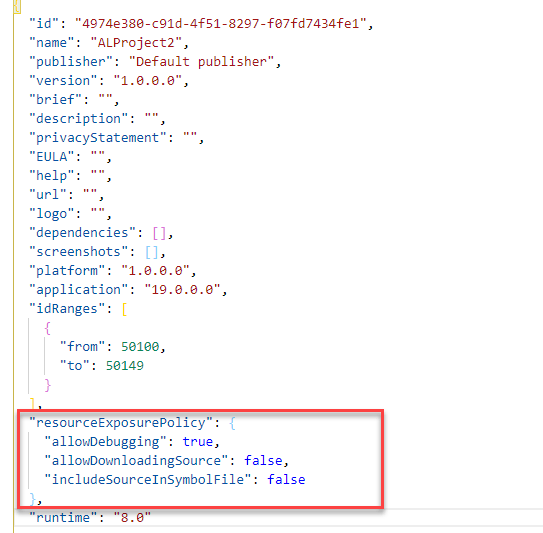
Now with new version of AL language this property has been deprecated and new property has been introduced resourceExposurePolicy where in we get leverage to control your app from debug ,download the app file.

This property will be automatically added when new project is created as below.

If you can see in this property we have three options which can be used to control the app and your IP.

  1. AllowDebugging :- Allow to control the debugging of your app when it is published. The default setting is true.
  2. AllowDownloadingSource :- Allow to control the download of your app source code .The default setting is false.
  3. IncludeSourceInSymbolFile: Allow to control symbol to be included in the source code of package. The default setting is false.

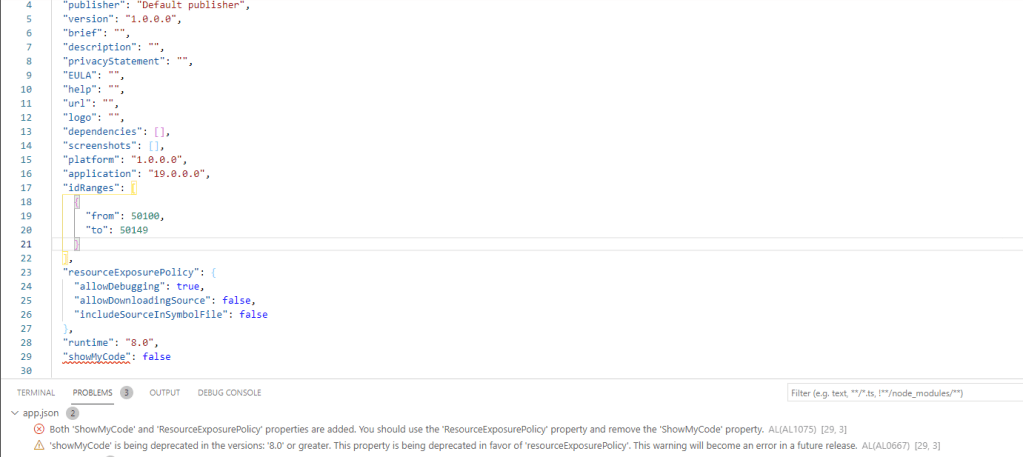
Can I add resourceExposurePolicy and showmycode property together ?

With the introduction of this new property in app.json file we can not use showmycode property as it will show an error and warning as below.

Hopefully this will help us to control our IP and provide more security on our app.

Stay tuned for more.

How to execute mathematical function in business central

Are you looking for for running some mathematical function in business central then may be this blog post is interesting for you.

In business central new system code unit is provided to execute some important mathematical function.

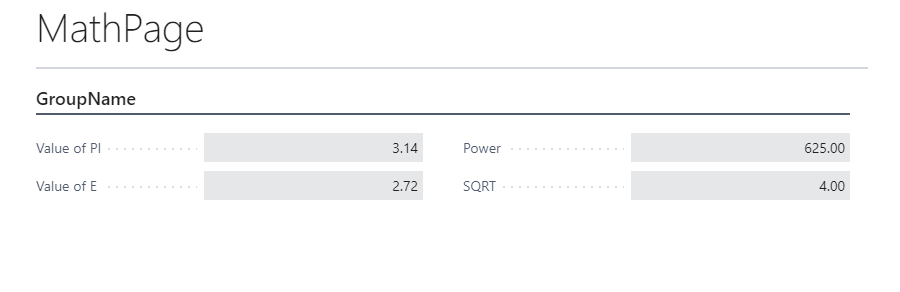
Build one simple page to show few expressions as below

One can determine following values from this codeunit.

MethodRemarks
PiReturns the value of pi.
EReturns the value of E.
Abs Returns the absolute value of a Decimal number.
AcosReturns the angle whose cosine is the specified number.
AsinReturns the angle whose sine is the specified number.
AtanReturns the angle whose tangent is the specified number.
PowReturns a specified number raised to the specified power.
SQRTReturns the square root of a specified number.
FloorReturns the largest integral value less than or equal to the specified decimal number.
ExpReturns e raised to the specified power.
CeilingReturns the smallest integral value that is greater than or equal to the specified decimal number.

Hopefully you find this helpful to you.

Stay tuned for more updates.

How to add keys in Base table of Business Central

With the release of Wave 1 2021 lot of new feature introduced . One of the new feature is that partners now can add keys in base table with customized field which was not possible earlier

Today we will see how we can do that

First Lets see what is happening is earlier version of business central. In earlier version we can only add the keys with the field added on table extension and we are not able to see the field available in base table for adding in keys

Look at the following example as I created one simple extension in V17 and trying to add key

Now when I try to add the keys in this table extension it will populate only those fields which are added in table extension

In New version of Business central i.e. Wave 1 2021 we can Add more keys with base table fields and use to improve the performance while retrieving or updating records

Now look at the following example for new version .Just created a simple table extension

Now when I try to add the keys in this table extension it will populate all the fields available in base table as below

So that means we can create keys with

  1. Fields from base table
  2. Fields from table extension

Can I create combination of fields from base table and fields from table extension ?

And the obvious answer is no and reasons are simple that both base table and table extension are two different tables in Sql server.

I hope you will find this information useful

So stay tuned for more updates.

Cheers.

How to add XML comments in AL Code :- Business Central

With the release of Business Central Wave 1 2020 XML comments is available in AL code.

If you would like to add documentation to your code then you can use XML documentation .The documentation comment must immediately before the object such as codeunit,table,functions etc.

The syntax for adding XML comments in your code is triple slashes /// followed by one of the supported XML tags. There is IntelliSense support for writing documentation comments. Most importantly providing a template documentation comment when writing the third slash in the triple slash.

These documentation comments are visible when hovering over source symbols.

Advantage :

  1. XML document comment will improve readability ,add useful information about the code implementation and help others take over your code .
  2. With XML comments it also enable intellisense in AL objects that you add in your code as a help to other developers who is going extend your code.

Let sees an example how we can add the xml comments.

Created one simple code unit where we can add documentation comments.

Please note that If you have the showMyCode setting in the app.json file set to false and download an app package; the app package will not contain any XML comments.

Hope this will help you.

How to Use SetLoadFields in Business Central for performance

With the release of Business Central Wave 1 2020 the partial records capability is available.

The partial records capability is allows for loading a subset of normal table fields when accessing the data source based on SQL.

To access the data source we use GET ,FIND NEXT. When we use these methods then runtime it load all fields and will hamper the performance while fetching the records.

Now from business central wave 2 2020 we can use ‘Partial records’ capability.

To accommodate partial records following methods available in business central. These methods are avaaible on RecordRef and Record datatype in AL. These methods are loaded in two groups i.e. Subsequent loads and Current load

MethodDescription
SetLoadFieldsSpecifies a set of fields to be initially loaded when the record is retrieved from its data source.
AddLoadFieldsAdds fields to the current set of fields to be initially loaded when the record is retrieved from its data source.
AreFieldsLoadedChecks whether the specified fields are all initially loaded.
LoadFieldsAccesses the table’s corresponding data source to load the specified fields.

Lets See few examples of these methods

Following example is for summation of Quantity fields from Item Ledger Entry .In this we would like to make calculation of only Quantity fields and not require the others fields to be loaded.

If you see SetLoadFields is call before data fetching operation starts. This will determine which fields needed for Find Set Call.

Advantage of this is that it gives you ability to load only those fields which are required to perform the operation which will make execution of code faster and give more performance. This feature is recommended to use while fetching the records and not for Insert,Modify or Delete operation.

Using the above method we added the required fields but what will happen to other fields which hasn’t been loaded .In such cases platform does an implicit GET and loads the missing fields, called as JIT Loading (Just in Time).

When JIT loading occurs, another access to the data source is required. These operations tend to be faster because they’re GET calls. GET calls can often be served by the server’s data cache or become clustered index seeks on the database.

Iterating over records in the database, enumerator is created based on selected fields and row is fetched when NEXT is called. but certain operations will not follow enumerator like if we passing a record by value and not by VAR .This operation actually creates new copy of the record and original records and copy of the record not share the filters ,selected field for loading. That means to access unloaded fields it need to trigger JIT load and but it will not update enumerator which means for future iterations also require JIT load.

To overcome such situations we can do following

  1. Pass the record reference using VAR.
  2. Call AddLoadFields on the original records before passing by value.
  3. Use SetLoadFields before calling FIND,GET,NEXT.

Hope this will help you to understand for partial records and stay tuned for more updates.

For more updates you can follow my blog on following channels.