Introducing ExcelLayoutMultipleDataSheets in Business Central 2025 Wave 1

With the release of Business Central 2025 Wave 1, business central continues to enhance developer and user experience in reporting and data analysis. One such powerful addition is the new property: ExcelLayoutMultipleDataSheets. This feature addresses a long-standing limitation in Excel export scenarios—allowing multiple datasets to be exported into separate sheets within a single Excel workbook.

What is ExcelLayoutMultipleDataSheets?

The ExcelLayoutMultipleDataSheets property is a new setting introduced for report objects that use Excel layouts. It enables developers to bind multiple data items or datasets to different worksheets in an Excel layout file (.xlsx), making reports more organized and structured when exported.

🧩 Structured Reports
Separate sheets for different datasets make it easier for business users to navigate complex reports—such as Sales Orders on one sheet, Customer Info on another, and Totals on a summary sheet.

🛠️ Developer Control
You can name your data items and match them to sheet names in your Excel layout. This gives you more granular control and reduces the need for workarounds.

How to Use ExcelLayoutMultipleDataSheets

report 50100 MyMultiSheetReport
{
    UsageCategory = ReportsAndAnalysis;
    ApplicationArea = All;
    DefaultRenderingLayout = MyExcelLayout;
    ExcelLayoutMultipleDataSheets = false; // Global setting is to use a single sheet

    dataset
    {
        dataitem(Customer; Customer)
        {
            column(CustomerNo; "No.") { }
            column(CustomerName; Name) { }
        }
        dataitem(Vendor; Vendor)
        {
            column(VendorNo; "No.") { }
            column(VendorName; Name) { }
        }
    }

    rendering
    {
        layout(MyExcelLayout)
        {
            Type = Excel;
            ExcelLayoutMultipleDataSheets = true; // Override for this specific layout
        }
    }
}

In this example, even though the global ExcelLayoutMultipleDataSheets property for the report is set to false, the MyExcelLayout will render the output with two separate worksheets:

  • Data_Customer containing the customer data.
  • Data_Vendor containing the vendor data.

If the ExcelLayoutMultipleDataSheets property within the MyExcelLayout definition was set to false (or not specified), both datasets would be combined into a single “Data” sheet in the Excel output.

The enhancement of the ExcelLayoutMultipleDataSheets property in Business Central Wave 1 2025 offers developers greater flexibility and control over Excel report layouts. By enabling the creation of multi-sheet Excel files at the layout level, you can deliver more user-friendly and better-organized reports, ultimately empowering your users to gain deeper insights from their Business Central data.

Stay tuned for more ….

Business Central 2025 Wave 1 (BC26): Check Total Purchase Amounts on Documents

The Business Central 2025 Wave 1 (BC26) release introduces a valuable feature aimed at enhancing the accuracy and efficiency of accounts payable processes: “Check Doc. Total Amounts”. While seemingly simple from a user perspective, but powerful addition that helps users validate purchase documents before posting.

At its heart, “Check Doc. Total Amounts” is designed to prevent posting discrepancies between the manually entered total amounts on purchase document headers and the calculated total amounts based on the individual purchase lines. This helps ensure that the data within Business Central accurately reflects the external vendor invoices, minimizing potential errors and reconciliation issues.

Implementation Details:

Setup: The functionality is controlled via a new option within the Purchases & Payables Setup page. Administrators need to explicitly enable the “Check Doc. Total Amounts” toggle. This opt-in approach ensures that existing environments are not impacted unless the feature is intentionally activated.

New Fields: Upon enabling the feature, two new fields become visible on the Purchase Invoice and Purchase Credit Memo pages:

  • Doc. Amount Incl. VAT: This field is intended for users to enter the total amount, including VAT, as stated on the vendor’s document.
  • Doc. Amount VAT: This field allows users to enter the total VAT amount as per the vendor’s document.

Automatic Calculation: When a user enters a value in the “Doc. Amount Incl. VAT” field, the system automatically calculates and populates the “Doc. Amount VAT” field based on the VAT rates applied to the individual purchase lines. Conversely, if the user enters the “Doc. Amount VAT”, the “Doc. Amount Incl. VAT” is automatically calculated.

Validation on Posting: The crucial technical aspect lies in the posting validation logic. When a user attempts to post a Purchase Invoice or Purchase Credit Memo with the “Check Doc. Total Amounts” feature enabled, Business Central performs the following checks:

  • It calculates the sum of the “Amount Including VAT” for all individual purchase lines.
  • It calculates the total VAT amount based on the VAT entries of the purchase lines.
  • It compares these calculated totals with the values entered in the “Doc. Amount Incl. VAT” and “Doc. Amount VAT” fields on the document header.

Error Handling: If the calculated total amounts from the lines do not match the manually entered amounts on the header, the system will prevent posting and display an error message to the user. This forces a review of the purchase lines and header information to identify and rectify any discrepancies before the document can be posted.

The “Check Doc. Total Amounts” feature in Business Central 2025 Wave 1 (BC26) is a welcome addition for improving the accuracy of purchase document processing.

Stay tuned for more.

Calculate Values Only for Visible FlowFields in Business Central

FlowFields in Business Central are incredibly powerful, allowing you to dynamically calculate values based on related data. However, what happens when you have many FlowFields, but only a few are visible on a page? Calculating all of them can lead to unnecessary performance overhead. Business Central’s clever design allows you to optimize this process by calculating values only for visible FlowFields, significantly improving page load times and overall system responsiveness. Let’s delve into how this works and why it’s beneficial.

FlowFields retrieve data dynamically, often requiring complex calculations or lookups. While this provides real-time insights, it can also impact performance, especially when dealing with large datasets or numerous FlowFields.

Imagine a customer card page with dozens of FlowFields, but you only display a handful of them in the main view. Calculating all those FlowFields, even the hidden ones, wastes valuable resources. This is where Business Central’s “calculate only visible” feature comes into play.

The “Calculate Only Visible” Concept

Business Central intelligently determines which Flow Fields are currently visible on the page and only calculates those values. This optimization minimizes unnecessary computations, resulting in faster page loads and improved user experience.

Benefits of Calculating Only Visible FlowFields:

  • Improved Performance: Faster page load times, especially for pages with numerous FlowFields.
  • Enhanced User Experience: Smoother navigation and faster data retrieval.
  • Scalability: Allows you to design complex pages with many FlowFields without sacrificing performance.

Business Central’s runtime environment dynamically analyzes the page layout and determines which Flow Fields are currently displayed.

Business Central’s “calculate only visible FlowFields” feature is a powerful optimization that can significantly improve performance and user experience

Stay tuned for more.

Production Order Cancellations: Reversing Consumption in Business Central V26

Production orders are the backbone of manufacturing operations, but sometimes, plans change. Orders need to be cancelled, and when those orders have already consumed materials, things can get tricky. Business Central V26 has stepped in to simplify this process, offering a more streamlined way to reverse consumption and cancel production orders. Let’s explore how this works.

Imagine you’ve started a production order, materials have been consumed, and then, for whatever reason, the order needs to be scrapped. In previous versions of Business Central, simply deleting the order wasn’t an option. The system needed a way to accurately reverse the consumption entries to maintain inventory and financial integrity. This often involved manual adjustments and could be a time-consuming, error-prone process.

Business Central V26: Simplifying the Reversal:

Enter the “Reverse Production Order Transaction” action in Business Central V26. This feature provides a more efficient and accurate way to undo consumption and output transactions, making production order cancellations less of a headache.

How it Works:

  • Reversing Item Ledger Entries:
    • When you use the “Reverse Production Order Transaction” action, Business Central generates reversing item journal lines.
    • These lines effectively negate the original consumption entries, returning the materials to inventory.
  • Handling Output and Capacity:
    • The system also reverses output and capacity entries, including quantities, scrap, setup time, and run time.
    • This ensures that all related ledger entries are accurately adjusted.
  • Accurate Ledger Updates:
    • The system applies these reversals to the original ledger entries, maintaining precise inventory and cost records.

After reversal of production order you can finish production order without output. To achieve this you need to enable the setup on Manufacturing setup

Activate the Finish Order Without Output toggle in the Manufacturing Setup page.

Business Central V26’s enhanced capabilities for reversing production order transactions represent a significant step forward in simplifying production management. By automating the reversal process, manufacturers can save time, reduce errors, and maintain accurate inventory and financial records. This feature is a valuable addition to the Business Central , making production order cancellations less of a burden and more of a seamless operation.

Stay tuned for more updates.

Reopening Finished Production Orders in Business Central v26 (Wave 1 2025)

Microsoft Business Central is constantly evolving, bringing us new features and enhancements with each wave release. One highly anticipated addition in Wave 1 2025 (v26) is the ability to reopen finished production orders. This seemingly simple functionality addresses a long-standing pain point for many manufacturers, offering increased flexibility and control over their production processes.

The Challenge

Previously, once a production order was marked as “Finished,” it was essentially locked. Any necessary adjustments, corrections, or further processing required creating a new production order, leading to potential data discrepancies and cumbersome workarounds. This rigid approach often hindered efficient handling of rework, returns, or unexpected post-production requirements.

The Solution: Reopening Finished Orders

With the v26 update, Business Central introduces the capability to reopen finished production orders.

To reopen a production order, follow these steps:

  1. On the Finished Production Orders page, select the order you want to edit.
  2. Choose the Reopen action.
  3. In the Do you want to reopen the production order? confirmation dialog, choose Yes.

This empowers users to:

  • Correct Errors: If errors are discovered after finishing an order (e.g., incorrect quantity reporting, wrong item consumption), you can reopen the order, make the necessary adjustments, and re-finish it.
  • Handle Rework or Returns: If products need rework or are returned, you can reopen the finished order, register the required adjustments, and complete the rework process within the original order.
  • Add Post-Production Activities: If additional operations or processes are needed after the order is finished (e.g., special packaging, additional quality checks), you can reopen the order and register these activities.
  • Maintain Data Integrity: Reopening the original order ensures a consistent and accurate audit trail, preventing data fragmentation and improving reporting accuracy.

As we approach the release of Wave 1 2025, stay tuned for more detailed information and practical examples on how to leverage this valuable feature.

What is planned for Business Central Wave 1 2024 release

As we are gearing up for new release of business central and already the buzz is started for new version. Here listing few upcoming features which I am looking forward in new version.

Copilot and AI innovation

One of the hot topics in market and lot of new features are revolved around this innovation such as

Introduce Power Automate Copilot integration with Business Central

Create sales lines easily with Copilot

Create product information faster with Copilot

Complete bank account reconciliation faster with Copilot

Map e-documents to purchase order lines with Copilot

Learn more about fields with Copilot

Development

This time less features planned for development side but are important

Debug the system application : This will help us to understand the code flow while debugging the application.

Remove friction when working with external app dependencies :- With this feature MS will make it possible to download the symbols from AppSource applications so we no need to depend on publisher of app.

User experiences

Use drag and drop to attach multiple files

Use actions to navigate and highlight or fix platform-generated errors

Share error details to get help from another user

There are more and more rich features planned for this release please keep an eye on

What’s new and planned for Dynamics 365 Business Central

Stay tuned for more….

How to change Customer Name on Open Sales Order in business central

With the release business central Wave 1 2022 lot of new features has been added to improve the user interaction with application.

This feature is small improvements in business central which allows to changes the name of customer on open sales document. This change of name will be applicable for that document only. This change of name is controlled by setup on sales & receivables setup.

Lets see how this setup works now on sales order

  1. If this setup is not enabled on Sales & Receivable setup .Try to change name on sales order and it shows following message

This message states that if you trying to change the customer name then master not found the record then asking whether like to create new record or if you existing customer with new name then select that customer.

2. If this setup is enabled in Sales & Receivables setup. Try to change name on sales order.

Now it allows to change the name on sales order

Hope this will help

Stay tune for more….

How to define multiple layouts for report in Business Central

With the release of business central V20 lot of new features are introduced and one of the features in you can define multiple layouts for reports while developing

In earlier days we are defining multiple layouts as below.

Now with the new release new rendering section is added while creating report in AL development

In the above rendering section we can define multiple layout as below

After compilations of report we can see the layout is created as below

Isn’t that cool features for layout

This features is available for Runtime 9.0

Hope this will help you..

Stay tuned for more.

How to discover reports and administration in business central role explorer

With the release of Business Central Wave 2 2021 aka BCV19 lot of new features has been added to make life easier of developer and/or customers.

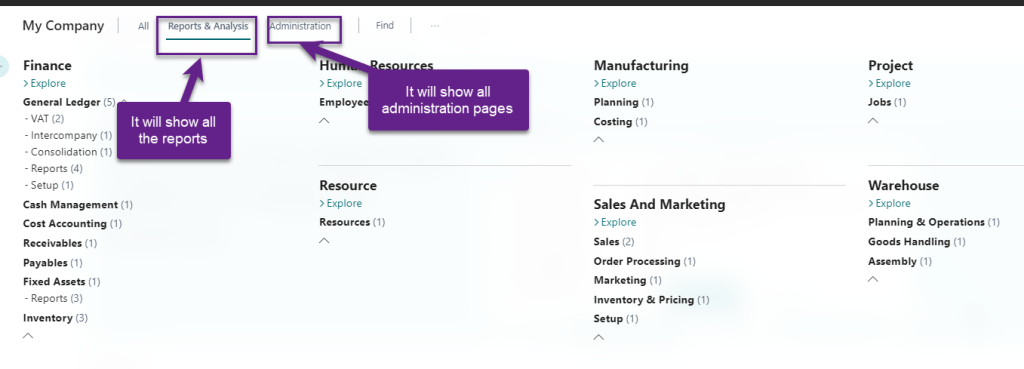
One of new feature added in business central V19 for role explorer where in one can explore all the reports and other screens.

There is new button added on Business Central V19 as below

Once you click on this button all the modules will be displayed irrespective of assign role center.

There are few more options once you click on Explore More roles where in you can filter for reports or administration pages.

With this new features you can find all the reports or administration pages at one place efficiently.

Hope this will help to find the reports.

Stay tuned for more.

How to clean up data in business central

With the release of Business Central Wave 2 2021 aka BCV19 lot of new features has been added to make life easier of developer and/or customers.

To keep database performance always high and size of database in control we need to remove some data from database as part of maintenance .but after removing the data what if user would like to review the data again.

In new version Microsoft comes up with new extension called Data Archive.

The main purpose of this extension whenever you delete the records it will archive the records. With this extension archive data will be stored in JSON format in the extension. Media field is created for the storage of JSNO format (Data Archive Media Field)

Lets See how it works in reality

The archive data is stored in Tenant Media table which is not considered while calculating database size. If user would like to revisit some data then you might need to query Azure Cosmos database or you can export data in excel.

Hopefully this will help.

Next blog we will look into how to use the archive functions in AL code.

Till then stay tuned for more updates.