Enhancing User Experience with InstructionalText Property in Microsoft Dynamics 365 Business Central

In today’s fast-paced business environment, clear and efficient communication within ERP systems is essential. Microsoft Dynamics 365 Business Central offers a plethora of features to enhance user experience, one of which is the InstructionalText property. This seemingly simple feature can significantly improve the usability and clarity of forms and pages in Business Central. Let’s dive into what the InstructionalText property is, how it works, and best practices for using it effectively.

What is the InstructionalText Property?

The InstructionalText property in Business Central is a text property used to provide users with additional guidance or instructions on how to fill out fields, use pages, or complete specific tasks within the system. This text appears within the field, making it easier for users to understand what is expected of them without needing to consult external documentation or manuals.

Where Can You Use InstructionalText?

The InstructionalText property can be applied to various elements within Business Central, such as:

  • Fields: Provide specific instructions on what data is required.
  • Pages & Page Extension: Offer guidance on the overall use of the page.

Benefits of Using InstructionalText

  1. Enhanced Usability: Users can quickly understand the purpose and requirements of fields and actions.
  2. Reduced Training Time: New users can become proficient more quickly with on-screen guidance.
  3. Consistency: Standardizes instructions across the system, reducing errors and confusion.
  4. Improved Data Quality: Ensures users input data correctly by providing specific instructions.

How to Implement InstructionalText

Implementing the InstructionalText property in Business Central is straightforward. Here’s a step-by-step guide:

  1. Open AL Code: Open your AL code project in Visual Studio Code.
  2. Define the Property: Locate the field on page where you want to add the instructional text and define the InstructionalText property. For example:
field("Customer Name"; "Name")
{
    InstructionalText = 'Enter the full name of the customer. This is a required field.';
}

Best Practices for Using InstructionalText

To make the most out of the InstructionalText property, consider the following best practices:

  1. Be Clear and Concise: Instructional text should be straightforward and easy to understand. Avoid jargon and keep it short.
  2. Be Specific: Provide precise instructions on what is required. For instance, instead of “Enter the name,” use “Enter the full legal name of the customer.”
  3. Prioritize Important Fields: Use instructional text for fields and actions that are critical to business processes or where users frequently make errors.
  4. Consistency is Key: Ensure that similar fields across different pages have consistent instructional text to avoid confusion.
  5. Use Plain Language: Write instructional text in a way that is accessible to all users, regardless of their technical expertise.

The InstructionalText property in Business Central is a powerful feature that can significantly enhance the user experience. By providing clear, concise, and consistent instructions directly within the system, you can reduce errors, improve data quality, and streamline onboarding for new users.

Hope you will find this helpful.

How to export data using TextBuilder in Business central.

Today we will see how we can data from business central table using new data type Text Builder.

To check how this data type work build small program as below which pick up data from customer table and export the data in text file.

pageextension 50101 CustomerMasterExtension extends "Customer List"
{
    actions
    {
        addlast(General)
        {
            action(DataExport)
            {
                Caption='Data Export to Text';
                ApplicationArea=All;
                PromotedCategory=Process;
                Promoted=true;
                Image=ExportDatabase;
                trigger OnAction()
                var
                CustomerMaster :Record Customer;
                Tempblob:Codeunit "Temp Blob";
                TextFileBuilder :TextBuilder;
                FileName:Text;
                InStreamData:InStream;
                OutStreamData:OutStream;
                begin 
                    FileName:='CustomerData.Txt';
                    TextFileBuilder.AppendLine('Customer No'+','+'Customer Name'+','+'Balance');
                    If CustomerMaster.FindSet() then repeat
                        CustomerMaster.SetAutoCalcFields(CustomerMaster.Balance);
                        TextFileBuilder.AppendLine(CustomerMaster."No."+','+CustomerMaster.Name+','+Format(CustomerMaster.Balance));
                    until CustomerMaster.Next()=0;
                    Tempblob.CreateOutStream(OutStreamData);
                    OutStreamData.WriteText(TextFileBuilder.ToText());
                    Tempblob.CreateInStream(InStreamData);
                    DownloadFromStream(InStreamData,'','','',FileName);
                end;
            }
        }
    }
}

If you look at the above code it is taking required data from customer table and export the data in text file as below.

To get more insight of data type have a look at MS documentation from below link

https://docs.microsoft.com/en-us/dynamics365/business-central/dev-itpro/developer/methods-auto/textbuilder/textbuilder-data-type

Hope this will help you.

Stay tuned for more.

How to define multiple layouts for report in Business Central

With the release of business central V20 lot of new features are introduced and one of the features in you can define multiple layouts for reports while developing

In earlier days we are defining multiple layouts as below.

Now with the new release new rendering section is added while creating report in AL development

In the above rendering section we can define multiple layout as below

After compilations of report we can see the layout is created as below

Isn’t that cool features for layout

This features is available for Runtime 9.0

Hope this will help you..

Stay tuned for more.

Business Central Wave 1 2022 Released

With the new dawn of 1st April Microsoft released Business Central Wave 1 2022.

The product DVD will be downloaded from following URL

Business Central Wave 1 2022

Few features of Business Central you can visit this link

Business Central Wave 2 2022 Features

Stay tuned for more detail.

How to change primary key in Business Central Table

Recently one of my customer asked me to add few more fields on primary key and I was looking at the customer like he asked something which is daunting task to be done with business central as everybody aware of that we can not change the primary key fields when table is already having data as while deploying the app it throws an error as below

Even I tried using Force sync also but it is still failing to deploy the app as this is breaking change for the app.

Now question is how to do this and overcome from such situation as your customer is behind you to do that.

To make it work we need to use ObsoleteState and ObsoleteReason that means we need to make your table obsolete and create a new table with new primary key and change the references in all those object where the object is referred.

To make the table obsolete mention the property as below.

Obsolete property value

ValueDescription
NoNot obsolete. This is the normal/default setting.
PendingWill become obsolete in a future version.
RemovedHas been made obsolete.

After making above table obsolete created new table with the new primary key.

Next point is how to transfer data in the new table .

To transfer data from obsolete table to new table used Installed code unit . Additionally you can use temporary table to update data from old table to new table.

If you would like to learn more about ObsoleteState Property then visit here.

Hope this will help you.

Stay tuned for more updates.

Business Central allows to change App Name Publisher of app.

With the release of Business Central Wave 2 2021 aka BCV19 lot of new features has been added to make life easier of developer and/or customers.

Can we change App name and/ or publisher name to meet marketing branding ? If you ask me till V18 it was not possible to change that and in V19 it is possible.

Lets see how it works.

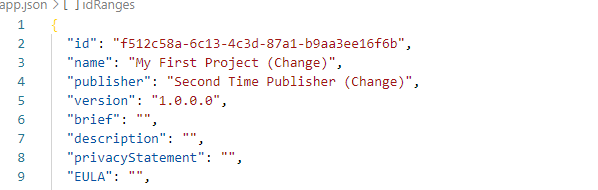
Here is my app.json file

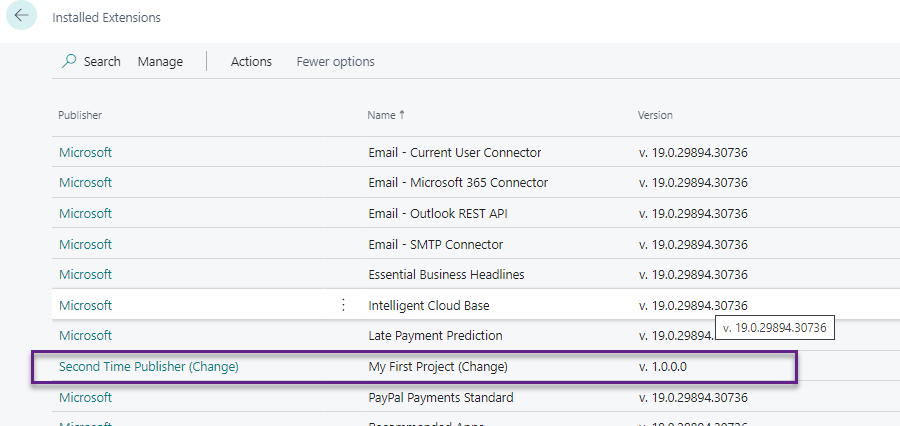
Publish the app

Changed the app.json

Hopefully this will help to give branding name to your app even after published.

Stay tuned for more.

How to allow your app to debug in business central

With the release of Business Central Wave 2 2021 aka BCV19 new version of AL language is also published.

Do you remember this post where in I explain the use of showmycode property from app.json file. With this property we have only one option either we allowed to debug and download your app or vice versa.

Now with new version of AL language this property has been deprecated and new property has been introduced resourceExposurePolicy where in we get leverage to control your app from debug ,download the app file.

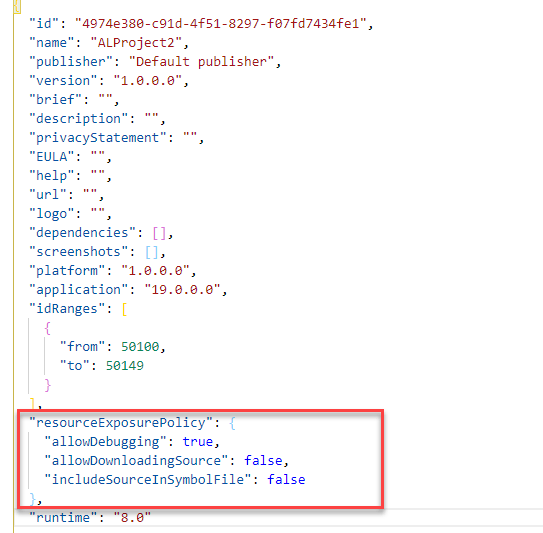
This property will be automatically added when new project is created as below.

If you can see in this property we have three options which can be used to control the app and your IP.

  1. AllowDebugging :- Allow to control the debugging of your app when it is published. The default setting is true.
  2. AllowDownloadingSource :- Allow to control the download of your app source code .The default setting is false.
  3. IncludeSourceInSymbolFile: Allow to control symbol to be included in the source code of package. The default setting is false.

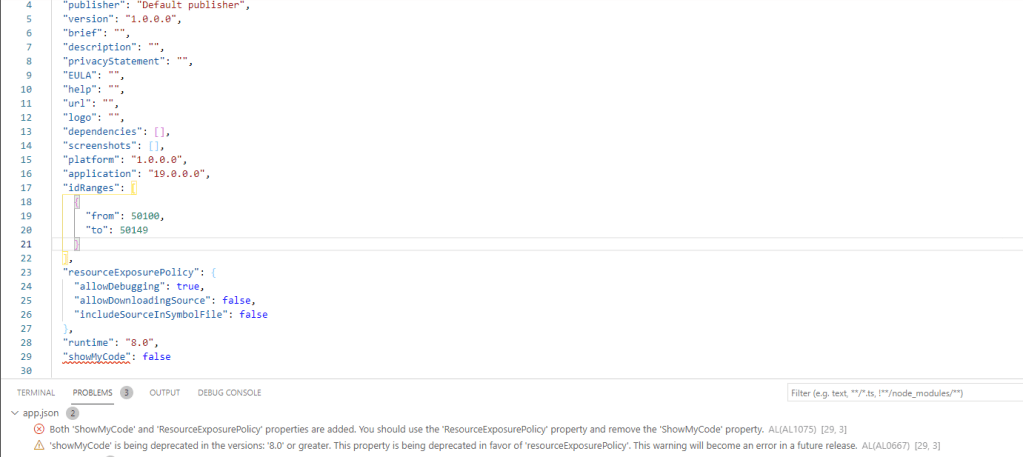
Can I add resourceExposurePolicy and showmycode property together ?

With the introduction of this new property in app.json file we can not use showmycode property as it will show an error and warning as below.

Hopefully this will help us to control our IP and provide more security on our app.

Stay tuned for more.

How to modify table data in business central

This week one of the customer post few transaction and found that one of the field user enter some wrong information. In ideal situation user need to reverse the transaction and post correct transaction which is safest approach.

But do you remember those old days where we have access to the table and can modify the data but with business central this ability no more available . I just build one small extension to modify the data in the table where in we can modify the posted data .

Important: It is not recommended to change data in the tables directly as it will cause inconsistency in database and make database vulnerable.

Just check following video to check small amount of work I did.

Additionally I found blog from Volodymyr Dvernytskyi for Data Editor .Please have a look into it.

Let me know your feedback.

Cumulative Update for Business Central August 2020

Cumulative Update includes all application and platform hotfixes and regulatory features that have been released for Microsoft Dynamics Business Central

MS Dynamics Business Central 2020 Wave 1 (BC16) :- CU 16.4

MS Dynamics 365 Business Central 2019 Release Wave 2(15.9) :- CU 15.9

Business Central Spring Release (BC14) :- CU15

Warning

Before you install a cumulative update in a production environment, take the following precautions:

  1. Test the cumulative update in a non-production environment.
  2. Make a backup of the system or computer where the cumulative update is to be installed.

Stay tuned for more updates…

How to create Custom Notification in Business Central

This blog post I am writing based on request of one of the follower.

Even though notification is not new business central world but today we will see how we will write custom notification and get notified for certain validations.

To create notifications I added following simple scenario that when my page get opened it should show some notification.

Lets see how we can do this.

To generate this notification I have used customer list page and subscribe on OnOpenPageEvent to execute my notification.

In this notification whenever page will get open it will show notification and whenever user click on Contact Us it will redirect to my blog.

Once this piece of code is published and as soon as customer list page opens you will see the result of notification as below

Hope this will help you.

Stay tuned for more..