Solving Barcode Printing Issues in RDLC Reports – Business Central On-Premise (v25)

When working with barcode printing in RDLC reports on Microsoft Dynamics 365 Business Central On-Premise, I recently ran into an issue that had me stumped for hours — and as it turns out, it all came down to a subtle but critical font installation step.

If you’re using Business Central and your barcodes refuse to show up in your reports (even after installing the right fonts), read on — this might just be your solution.

🚫 The Problem: Barcode Fonts Not Showing in RDLC

Here’s what I tried — the standard advice you’ll find across most forums:

  • ✅ Installed the barcode font (Code 128, Code 39, Free 3 of 9, etc.) on the service tier machine
  • ✅ Installed the same font on the user/client machine
  • ✅ Restarted the Business Central Server/NST
  • ✅ Restarted the entire machine
  • ✅ Checked that RDLC reports were using the correct font name

Still — no barcodes were rendered.

🕵️ The Hidden Detail: “Install for All Users”

After much trial and error, I stumbled across the real fix:

When installing a font on the Business Central service tier (server), you must choose “Install for all users” — not just a regular install.

Here’s why:

  • Business Central’s NST runs under a system account, not your logged-in user.
  • Fonts installed only for the current user aren’t visible to the NST process.
  • Unless the font is registered system-wide, RDLC won’t be able to use it.

Install the Barcode Font on the Server

  • Right-click the font file (e.g., Code128.ttf)
  • Choose ➡️ Install for all users

Install the Font on Client Machine (Optional but recommended)

  • This ensures previews and printed reports render properly when opened locally.

Restart the Server

  • Not just the NST service — a full restart helps Windows fully register system fonts.

It’s always the little things! A simple checkbox — “Install for all users” — was all it took to fix what seemed like a mysterious RDLC issue.

If you’re working with barcode fonts in RDLC reports on Business Central and nothing seems to work, double-check your font installation method — this could save you hours of frustration.

Hope this will help!!!

Optimizing Business Central Reports with the DataAccessIntent Property

When developing reports in Microsoft Dynamics 365 Business Central, performance and scalability are crucial—especially in cloud environments where system efficiency impacts everything from responsiveness to cost. One often-overlooked feature that can significantly enhance report performance is the DataAccessIntent property.

What Is DataAccessIntent?

The DataAccessIntent property is available on report objects in AL. It specifies how a report should access the database—whether it’s read-only or read-write.

The property supports two values:

  • DataAccessIntent = ReadOnly
  • DataAccessIntent = ReadWrite

ReadOnly

When you set DataAccessIntent = ReadOnly, you are explicitly telling the platform that your report only needs to read data from the database and will not perform any write operations.

Why is this important?

  • Better Performance: In Business Central SaaS, reports marked as ReadOnly can run on read-only replicas of the database. This reduces the load on the primary (read-write) database and enhances scalability.
  • Improved Report Execution Time: Since queries are routed to optimized replicas, report rendering can be faster and more efficient.

ReadWrite

If your report needs to modify data during execution—a rare scenario—you should use DataAccessIntent = ReadWrite. This forces the report to run on the primary database.

However, you should avoid using ReadWrite unless absolutely necessary because:

  • It eliminates the benefit of using read replicas.
  • It may degrade performance, especially under high concurrency.

When to Use Each

ScenarioUse ReadOnly?Use ReadWrite?
Standard data listing/reporting
Reports that update records
Diagnostic or audit reports

How to Set DataAccessIntent in AL

report 50100 "Customer Balance Report"
{
    DataAccessIntent = ReadOnly;

    dataset
    {
        dataitem(Customer; Customer)
        {
            column(Name; Name) { }
            column(Balance; "Balance (LCY)") { }
        }
    }

    layout
    {
        // Define RDLC or Word layout
    }
}

By default, if you don’t specify the property, it behaves as ReadWrite. So it’s a good practice to explicitly set it to ReadOnly when applicable.

Important Considerations

  • The DataAccessIntent property is only a hint to the Business Central server. The server may not always be able to use a read-only replica, even if the property is set to ReadOnly.
  • If a report with DataAccessIntent set to ReadOnly attempts to modify data, a runtime error will occur.
  • The DataAccessIntent property can be overridden by the user through the “Database Access Intent List” page in Business Central.

In short: if your report doesn’t write data, use DataAccessIntent = ReadOnly. It’s an easy win for performance and best practice compliance.

Stay tuned for more….

Boosting Performance in Business Central with SetAutoCalcFields

In today’s fast-paced business environments, performance optimization is not a luxury — it’s a necessity. Whether you’re building custom reports, extending pages, or writing integration APIs in Microsoft Dynamics 365 Business Central, slow operations can frustrate users and strain resources.

One simple but powerful technique to improve performance is using the SetAutoCalcFields method.

Why FlowFields Matter for Performance

In Business Central, FlowFields are virtual fields calculated on the fly, not stored physically in the database. Examples include:

  • Inventory on Item
  • Balance on Customer

When you retrieve a record, FlowFields are not calculated automatically unless you explicitly call CalcFields().

Manually calculating FlowFields for every record during loops, leading to multiple SQL queries — one for each record — causing heavy load and slower performance.

SetAutoCalcFields solves this by batch-calculating FlowFields along with the record fetch.
Instead of running one query per record, it combines the calculation in a single optimized query.

Imagine fetching 1,000 customers and displaying their balances without SetAutoCalcfields:

CustomerRec.FindSet();
repeat
    CustomerRec.CalcFields(CustomerRec.Balance); // Triggers a DB call every time!
    DisplayBalance(CustomerRec."No.", CustomerRec.Balance);
until CustomerRec.Next() = 0;

Result:
  • 1 SQL query to get Customers
  • + 1,000 SQL queries for Balances

With SetAutoCalcFields:

CustomerRec.SetAutoCalcFields(CustomerRec.Balance);
CustomerRec.FindSet();
repeat
    DisplayBalance(CustomerRec."No.", CustomerRec.Balance);
until CustomerRec.Next() = 0;

Result:
  • 1 SQL query to get Customers and Balances together

Benefits of Using SetAutoCalcFields

  • Improved Page Load Times: By deferring calculations, pages with numerous records and calculated fields will load significantly faster.
  • Faster Report Generation: Reports that rely on calculated fields will be generated more quickly as the calculations are performed only when the field’s value is actually needed for display or processing.
  • Reduced Database Load: Fewer automatic calculations translate to fewer database queries, reducing the overall load on your Business Central database.
  • Enhanced User Experience: Snappier performance leads to a more responsive and enjoyable user experience.

Best Practices for Performance Gains

To maximize the benefits of SetAutoCalcFields:

  • Only specify necessary FlowFields:
    Don’t auto-calculate every FlowField — focus on what your process needs.
  • Use it before data retrieval:
    Call SetAutoCalcFields before FindSet(), FindFirst(), or FindLast()
  • Avoid unnecessary recalculations:
    Once FlowFields are set to auto-calculate, do not manually call CalcFields() again for the same fields.
  • Monitor heavy FlowFields:
    Some FlowFields (e.g., Inventory) involve complex sums across tables — only auto-calculate when really needed.
  • Profile your code:
    Use Performance Profiler to measure improvements.

Using SetAutoCalcFields properly can lead to dramatic performance improvements in Business Central.
By reducing SQL traffic, simplifying code, and batch-fetching FlowFields intelligently, you can create faster, cleaner, and more scalable applications.

A small change in your coding habits can create a big impact for your users.

Hope this will help..

SessionInformation.Callstack() in Business Central

Introduced in Business Central Wave 1 2025 releases, the SessionInformation.Callstack() method is a powerful diagnostic tool that helps developers trace the current call stack within AL code. Whether you’re troubleshooting custom extensions, tracking errors, or building telemetry, this method can become your best friend.

What is the SessionInformation.Callstack() Method?

The SessionInformation.Callstack() method is a built-in function in AL that returns a text string representing the current call stack of the Business Central server session. Think of the call stack as a chronological list of the functions and procedures that have been called to reach the current point in your code.

Each entry in the call stack typically includes:

  • Object Type and Name: The type of object (e.g., Codeunit, Table, Page) and its name.
  • Function/Procedure Name: The specific function or procedure being executed.
  • Line Number: The line number within the function/procedure where the call originated.

📌 Syntax

var
    CallStackText: Text;
begin
    CallStackText := SessionInformation.Callstack();
end;

🧩 Why is the Call Stack Important?

Understanding the call stack is crucial for several reasons:

  • Debugging: When an error occurs, the call stack provides a trace of the execution path leading up to the error. This helps you pinpoint the exact location where the issue originated and understand the sequence of events that triggered it.
  • Error Handling: By capturing and logging the call stack when an error occurs, you can provide more context to administrators or support teams, making it easier to diagnose and resolve issues.
  • Code Understanding: Analyzing the call stack can help you understand the flow of execution in complex codebases, especially when working with unfamiliar code or trying to understand how different modules interact.

You can combine this with

  • ErrorInfo object (for AL error handling)
  • SessionInformation.UserId() or CompanyName() for full diagnostic logs
var
    CallStack: Text;
    ErrorData: ErrorInfo;
begin
    if not TryMyFunction() then begin
        GetLastError(ErrorData);
        LogToTable('Error: %1 - Stack: %2', ErrorData.Message, SessionInformation.Callstack());
    end;

SessionInformation.Callstack() is a small method with big potential. It’s the AL developer’s X-ray — revealing the path of execution in complex customizations or tangled logic.

Use it smartly, especially in:

  • Error handling routines
  • Long-running jobs
  • Telemetry and diagnostics pipelines

Stay Tuned for more updates

Unleash Your Workspace: Resizable Fact Boxes Arrive in Business Central v26!

Tired of cramped Fact Boxes? Wishing you could see more detail without endless scrolling? Your wish has been granted! Dynamics 365 Business Central version 26 (2025 wave 1) introduces a much-anticipated feature: resizable Fact Boxes!

For years, Business Central users have navigated valuable contextual information within the FactBox pane. However, the fixed width often led to limitations, especially on larger screens or when dealing with detailed data. Now, Microsoft has empowered users to take control of their workspace.

Say Goodbye to Fixed Dimensions!

With the new resizing capability, you can:

  • Customize Your View: Easily adjust the width of the FactBox pane to suit your needs. Whether you need a narrow view for quick glances or a wider view for in-depth analysis, the choice is yours.
  • Maximize Screen Real Estate: Utilize your screen’s potential by expanding the FactBox to view more information at once. No more unnecessary scrolling!
  • Personalized Experience: Business Central remembers your preferred FactBox size per page and mode, ensuring a consistent and tailored experience every time you return.
  • Simple and Intuitive: Resizing is a breeze! Simply drag the divider line between the main page area and the FactBox pane to your desired width.
  • Quick Reset: If you want to return to the default size, just double-click the divider line.
  • Reasonable Limits: The factbox can be expanded to a maximum of half of the page width.

Why This Matters

This seemingly small change has a significant impact on user productivity and efficiency. By providing greater control over the workspace, Business Central empowers users to:

  • View Information More Effectively: Gain a clearer and more comprehensive understanding of related data.
  • Reduce Scrolling and Save Time: Access crucial information faster and streamline workflows.
  • Enhance User Experience: Create a more personalized and comfortable working environment.

How to Resize Your Fact Box:

  1. Locate the divider line separating the main page area and the FactBox pane.
  2. Click and drag the divider line to your desired width.
  3. Observe the FactBox pane resizing accordingly.
  4. To return to the default size, double-click the divider line.

Looking Ahead

The introduction of resizable Fact Boxes highlights continuous improvement and user-centric design. This feature further enhances the flexibility and usability of Business Central, making it an even more powerful tool for businesses of all sizes.

What is planned for Business Central Wave 2 2021 release

As we are gearing up for new release of business central and already the buzz is started for new version . Here I will list few upcoming features which I am looking forward in new version.

Following features I am looking forward.

Richer access control for extension source in cloud environments

Add additional columns through personalization in various pages to gain more insight

List of trusted partner apps

Profiling AL performance with snapshot debugger

Transactional installation and sync of extensions on-premises

Restarting environments

Unhindered data entry across rows

Decimal separator on numeric keypad matches region setting

Discovering reports and administration areas in Role Explorer

Copying environments of different types

Do let me know yours…

How to restore environment in business central

Have you guys remember my tweet regarding the restoration of environment .Following is the tweet

If you still not follow me on then please follow me on twitter for more updates

So in month of November 2020 I faced this problem as due to some issue production environment got hanged and user abruptly close the session .Post that data in some tables got messy and couldn’t recover in time and then I need to contact MS guys to restore environment which took almost a week and till that time customer transaction got halted. That time question came to my mind how customer will handle all these things by going forward and MS guy responded me that time that this feature is going to added in Admin center in upcoming release.

Now with released of Business central 17.3 this feature become reality .It is still in preview mode.

Lets look at how to restore the environment

To restore environment you need to have access to admin center.

  1. Go to Admin center.
  2. Select Environment

3. Click on Restore

4. In the restore environment window select date and time to which you want to restore the environment.

5. Select the type of environment such as sandbox or production.

6. Finally Name for restored environment.

7. Hit the restore

Important points

  1. Backups are available for past 30 days
  2.  The number of restore attempts will be limited to 10 attempts per environment/per month.
  3. The recovery is allowed within a maximum of three immediately preceding versions of Business Central (including minor and major updates), but still within a maximum of 30 days (from the point of the environment creation)

Hope this will help you.

Stay tune for more.

How to kill session in Business Central

Recently faced a problem of table locking which goes in not responding stage and finally user close the tab ,but when user opens the session again it actually messed up the critical data (It seems unimaginable force was roaming that time when this happens). Eventually after trying couple of days for data correction I need to contact Microsoft to restore the database.

When this happening my customer asked me if something like this happen then can we kill or cancel the session of user and then I came across this feature of Business Central admin center.

How to access admin center

This can be by adding tenant id with your business central URL as below

https://businesscentral.dynamics.com/%5BTenant Id]

This will open admin center as below.

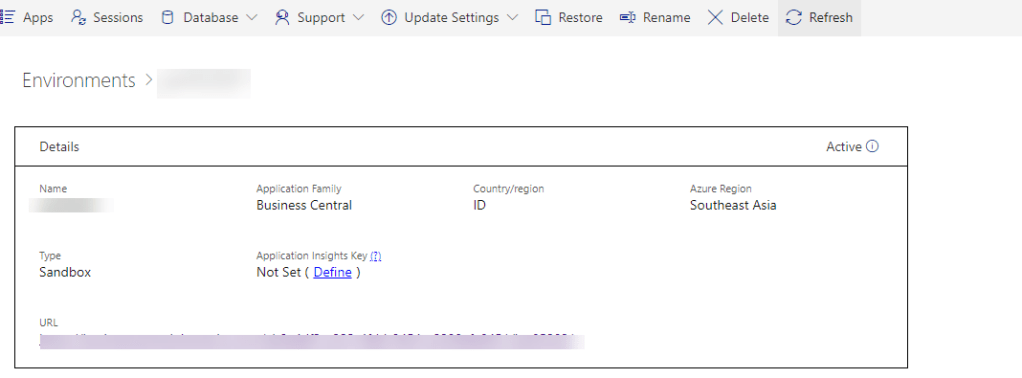
In this portal you can see all the environment including sandbox.I can see this is your control center for managing business central on cloud.

Now next step is click on required environment which will navigate to other screen.

To see all the session click on session

This will show you call the required session for the selected environment.

Now to cancel the session select the required session and click on Cancel session .This will kill the required session.

Another advantage of this screen is that it show other information like which operation is going on ,which object is involved in current operation and duration of current operation.

Hope this will help you to cancel the unwanted session

Stay tuned for more..