Calculate Values Only for Visible FlowFields in Business Central

FlowFields in Business Central are incredibly powerful, allowing you to dynamically calculate values based on related data. However, what happens when you have many FlowFields, but only a few are visible on a page? Calculating all of them can lead to unnecessary performance overhead. Business Central’s clever design allows you to optimize this process by calculating values only for visible FlowFields, significantly improving page load times and overall system responsiveness. Let’s delve into how this works and why it’s beneficial.

FlowFields retrieve data dynamically, often requiring complex calculations or lookups. While this provides real-time insights, it can also impact performance, especially when dealing with large datasets or numerous FlowFields.

Imagine a customer card page with dozens of FlowFields, but you only display a handful of them in the main view. Calculating all those FlowFields, even the hidden ones, wastes valuable resources. This is where Business Central’s “calculate only visible” feature comes into play.

The “Calculate Only Visible” Concept

Business Central intelligently determines which Flow Fields are currently visible on the page and only calculates those values. This optimization minimizes unnecessary computations, resulting in faster page loads and improved user experience.

Benefits of Calculating Only Visible FlowFields:

  • Improved Performance: Faster page load times, especially for pages with numerous FlowFields.
  • Enhanced User Experience: Smoother navigation and faster data retrieval.
  • Scalability: Allows you to design complex pages with many FlowFields without sacrificing performance.

Business Central’s runtime environment dynamically analyzes the page layout and determines which Flow Fields are currently displayed.

Business Central’s “calculate only visible FlowFields” feature is a powerful optimization that can significantly improve performance and user experience

Stay tuned for more.

Preview PDFs Directly in Business Central Web Client (v26)

With the release of version 26, a significant productivity boost has arrived: direct PDF attachment previews within the web client. No more downloading, opening external viewers, or switching between applications. This streamlined experience lets you access and review crucial documents instantly, right within your Business Central workflow.

What Does This Mean For You?

Imagine you’re processing a purchase order and need to quickly verify the attached vendor invoice. Previously, you’d have to download the PDF, open it in a separate application, and then return to Business Central. This process was time-consuming and disruptive.

Now, with the new preview functionality, you can:

  • View PDFs directly in the FactBox: When a PDF is attached to a record (like a sales order, purchase invoice, or customer card), you can preview it instantly in the FactBox without leaving the page.
  • Save time and improve efficiency: Eliminate the need for downloads and external viewers, allowing you to focus on your core tasks.
  • Enhance collaboration: Quickly share and review documents with colleagues, streamlining approvals and decision-making.
  • Enjoy a seamless user experience: The integrated preview functionality provides a more intuitive and efficient workflow.

How Does It Work?

The new feature leverages the browser’s built-in PDF rendering capabilities. When you click on a PDF attachment in the FactBox, the document opens directly within the Business Central web client, allowing you to:

  • Scroll through pages.
  • Zoom in and out.
  • Search for specific text.

This feature is enabled by default in Business Central version 26. Simply open a record with a PDF attachment, and you’ll see the preview option in the FactBox.

For Developers:

  • Microsoft has added the following AL methods to enable this functionality.
    • File.ViewFromStream (for Business Central online)
    • File.View (for Business Central on-premises)

How to export data using TextBuilder in Business central.

Today we will see how we can data from business central table using new data type Text Builder.

To check how this data type work build small program as below which pick up data from customer table and export the data in text file.

pageextension 50101 CustomerMasterExtension extends "Customer List"
{
    actions
    {
        addlast(General)
        {
            action(DataExport)
            {
                Caption='Data Export to Text';
                ApplicationArea=All;
                PromotedCategory=Process;
                Promoted=true;
                Image=ExportDatabase;
                trigger OnAction()
                var
                CustomerMaster :Record Customer;
                Tempblob:Codeunit "Temp Blob";
                TextFileBuilder :TextBuilder;
                FileName:Text;
                InStreamData:InStream;
                OutStreamData:OutStream;
                begin 
                    FileName:='CustomerData.Txt';
                    TextFileBuilder.AppendLine('Customer No'+','+'Customer Name'+','+'Balance');
                    If CustomerMaster.FindSet() then repeat
                        CustomerMaster.SetAutoCalcFields(CustomerMaster.Balance);
                        TextFileBuilder.AppendLine(CustomerMaster."No."+','+CustomerMaster.Name+','+Format(CustomerMaster.Balance));
                    until CustomerMaster.Next()=0;
                    Tempblob.CreateOutStream(OutStreamData);
                    OutStreamData.WriteText(TextFileBuilder.ToText());
                    Tempblob.CreateInStream(InStreamData);
                    DownloadFromStream(InStreamData,'','','',FileName);
                end;
            }
        }
    }
}

If you look at the above code it is taking required data from customer table and export the data in text file as below.

To get more insight of data type have a look at MS documentation from below link

https://docs.microsoft.com/en-us/dynamics365/business-central/dev-itpro/developer/methods-auto/textbuilder/textbuilder-data-type

Hope this will help you.

Stay tuned for more.
How to define multiple layouts for report in Business Central

With the release of business central V20 lot of new features are introduced and one of the features in you can define multiple layouts for reports while developing

In earlier days we are defining multiple layouts as below.

Now with the new release new rendering section is added while creating report in AL development

In the above rendering section we can define multiple layout as below

After compilations of report we can see the layout is created as below

Isn’t that cool features for layout

This features is available for Runtime 9.0

Hope this will help you..

Stay tuned for more.

Preview Environment for Business Central 2022 Wave 1 (BC20)

So with new year major version of business central is about to release and in context of that Microsoft released preview version of business central 2022 Wave 1 (BC 20). This preview version only possible to create for Sandbox and non production environment.

How to get this preview environment to get the hands on the new release

On the cloud version of business central one can create Sandbox as below for preview version

This preview version available on docker also.

For Docket Artifacts user following PowerShell command.

Get-BcArtifactUrl -storageAccount BcPublicPreview -country <country> -type <type>

To understand more about the features of BC20 you can visit here

Stay tuned for more on this version

Business Central allows to change App Name Publisher of app.

With the release of Business Central Wave 2 2021 aka BCV19 lot of new features has been added to make life easier of developer and/or customers.

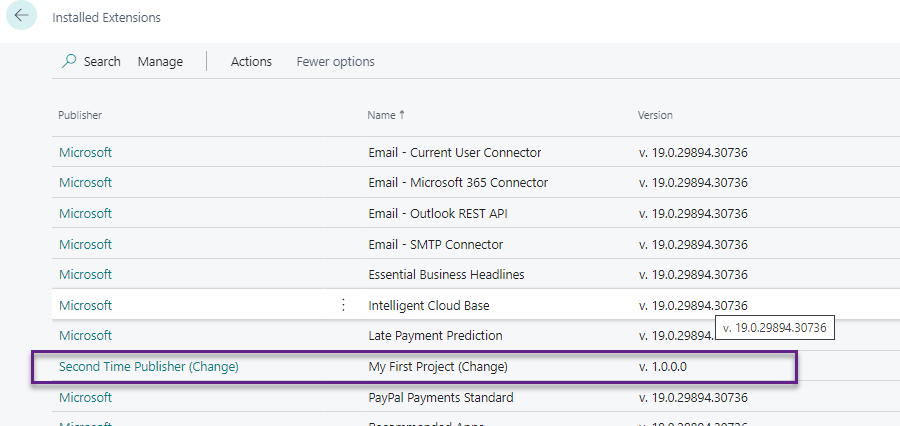
Can we change App name and/ or publisher name to meet marketing branding ? If you ask me till V18 it was not possible to change that and in V19 it is possible.

Lets see how it works.

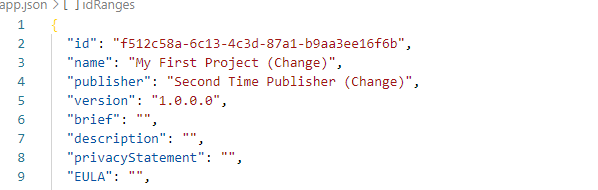
Here is my app.json file

Publish the app

Changed the app.json

Hopefully this will help to give branding name to your app even after published.

Stay tuned for more.

Microsoft Business Central 2021 Wave 2 released

Microsoft releases business central 2021 Wave 2 (BC 19) on 1st October 2021 .

This version is available on

  1. Cloud
  2. On Docker
  3. On Premise

To check I tried to create new sandbox on cloud environment and it is readily available on my region too,.

Apart from this to get more detail and understanding on new version Microsoft already scheduled a launch event with breakout session .You can register here Business Central Launch Event

For On premise version you can download from following link

Business central On-Premise Version Download

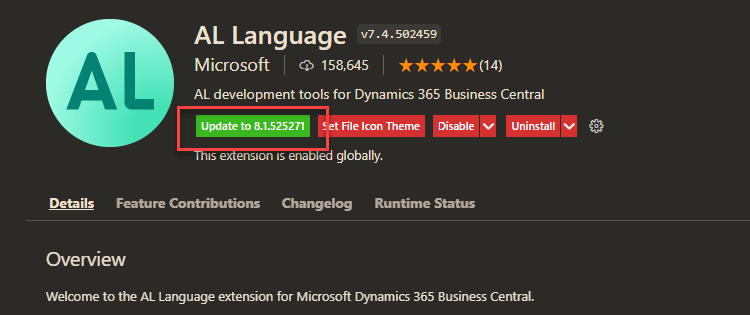
New Version for AL language also available to update.

Stay turned for more updates and keep exploring..

How to modify table data in business central

This week one of the customer post few transaction and found that one of the field user enter some wrong information. In ideal situation user need to reverse the transaction and post correct transaction which is safest approach.

But do you remember those old days where we have access to the table and can modify the data but with business central this ability no more available . I just build one small extension to modify the data in the table where in we can modify the posted data .

Important: It is not recommended to change data in the tables directly as it will cause inconsistency in database and make database vulnerable.

Just check following video to check small amount of work I did.

Additionally I found blog from Volodymyr Dvernytskyi for Data Editor .Please have a look into it.

Let me know your feedback.

What is planned for Business Central Wave 2 2021 release

As we are gearing up for new release of business central and already the buzz is started for new version . Here I will list few upcoming features which I am looking forward in new version.

Following features I am looking forward.

Richer access control for extension source in cloud environments

Add additional columns through personalization in various pages to gain more insight

List of trusted partner apps

Profiling AL performance with snapshot debugger

Transactional installation and sync of extensions on-premises

Restarting environments

Unhindered data entry across rows

Decimal separator on numeric keypad matches region setting

Discovering reports and administration areas in Role Explorer

Copying environments of different types

Do let me know yours…

How to Delete extension data in business central

With the release of Business Central Wave 1 2020 new feature added to delete the extension data from production or sandbox. Prior to that we can uninstall the extension but data still there for the extension.

This feature will be useful when

1) Application is not in use.

2) Customer have desire to reinstall the extension data from scratch.

Let see how to uninstall and delete the extension data.

1) Launch the business central and search for extension management.

2) Select the required extension for uninstall. In this you can see new option added for delete extension data .

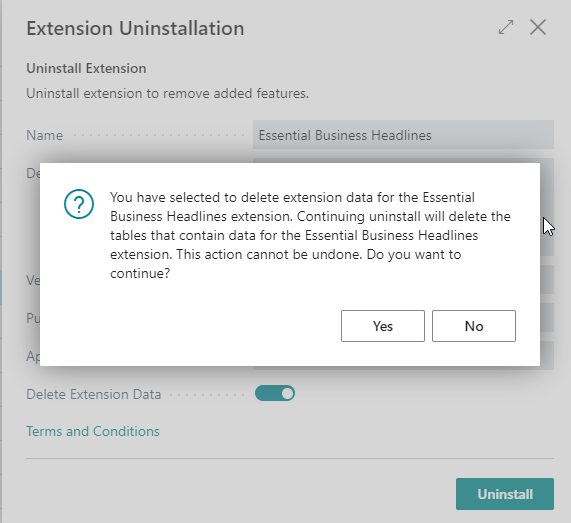
3) After selecting the option then you will get following warning message.

4) After click ‘YES’ then you can see ‘Delete Extension Data’ will get enable as follows

5) After that you can click on Uninstall then system will again warn before starting deleting data from extension.

6) If you are sure then click ‘YES’ and it will start processing to delete the data. This can not be undone.

Hope this will help and stay tuned for more.

If you like my blog then please connect me on

Blog :-https://ammolhsaallvi.blog/

Twitter :-https://twitter.com/ammolhsaallvi

LinkedIn :-https://in.linkedin.com/in/amolsalvi