Unleash Your Workspace: Resizable Fact Boxes Arrive in Business Central v26!

Tired of cramped Fact Boxes? Wishing you could see more detail without endless scrolling? Your wish has been granted! Dynamics 365 Business Central version 26 (2025 wave 1) introduces a much-anticipated feature: resizable Fact Boxes!

For years, Business Central users have navigated valuable contextual information within the FactBox pane. However, the fixed width often led to limitations, especially on larger screens or when dealing with detailed data. Now, Microsoft has empowered users to take control of their workspace.

Say Goodbye to Fixed Dimensions!

With the new resizing capability, you can:

  • Customize Your View: Easily adjust the width of the FactBox pane to suit your needs. Whether you need a narrow view for quick glances or a wider view for in-depth analysis, the choice is yours.
  • Maximize Screen Real Estate: Utilize your screen’s potential by expanding the FactBox to view more information at once. No more unnecessary scrolling!
  • Personalized Experience: Business Central remembers your preferred FactBox size per page and mode, ensuring a consistent and tailored experience every time you return.
  • Simple and Intuitive: Resizing is a breeze! Simply drag the divider line between the main page area and the FactBox pane to your desired width.
  • Quick Reset: If you want to return to the default size, just double-click the divider line.
  • Reasonable Limits: The factbox can be expanded to a maximum of half of the page width.

Why This Matters

This seemingly small change has a significant impact on user productivity and efficiency. By providing greater control over the workspace, Business Central empowers users to:

  • View Information More Effectively: Gain a clearer and more comprehensive understanding of related data.
  • Reduce Scrolling and Save Time: Access crucial information faster and streamline workflows.
  • Enhance User Experience: Create a more personalized and comfortable working environment.

How to Resize Your Fact Box:

  1. Locate the divider line separating the main page area and the FactBox pane.
  2. Click and drag the divider line to your desired width.
  3. Observe the FactBox pane resizing accordingly.
  4. To return to the default size, double-click the divider line.

Looking Ahead

The introduction of resizable Fact Boxes highlights continuous improvement and user-centric design. This feature further enhances the flexibility and usability of Business Central, making it an even more powerful tool for businesses of all sizes.

How to add keys in Base table of Business Central

With the release of Wave 1 2021 lot of new feature introduced . One of the new feature is that partners now can add keys in base table with customized field which was not possible earlier

Today we will see how we can do that

First Lets see what is happening is earlier version of business central. In earlier version we can only add the keys with the field added on table extension and we are not able to see the field available in base table for adding in keys

Look at the following example as I created one simple extension in V17 and trying to add key

Now when I try to add the keys in this table extension it will populate only those fields which are added in table extension

In New version of Business central i.e. Wave 1 2021 we can Add more keys with base table fields and use to improve the performance while retrieving or updating records

Now look at the following example for new version .Just created a simple table extension

Now when I try to add the keys in this table extension it will populate all the fields available in base table as below

So that means we can create keys with

  1. Fields from base table
  2. Fields from table extension

Can I create combination of fields from base table and fields from table extension ?

And the obvious answer is no and reasons are simple that both base table and table extension are two different tables in Sql server.

I hope you will find this information useful

So stay tuned for more updates.

Cheers.

How to Setup SMTP Mail Using Gmail in Business Central

Recently I encounter this issue as one of the customer would like to set up Gmail as service provided for SMTP mail in business central.

So I started the regular way how we started setting up SMTP and encounter the following issue.

Initial Setup :-

Did the initial setup with required details and while key in I key in the regular password which used while signing in Gmail.

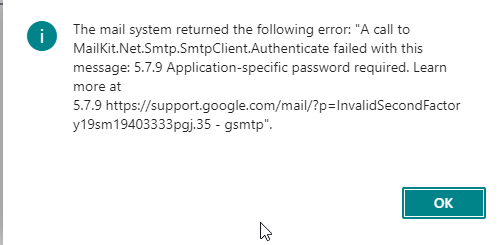
When I click to Test Email setup and encounter the following error.

Now question is how get over this issue as it is something like you have entered some wrong password and you are getting this issue. After investing some hours I found the crucks for this issue as we need to generate App Password

This issue is encounter because of the Gmail security which required to authenticate the app which is going to use Gmail id.

To do this we need to do following

  1. Sign in your Gmail account which you are using in business central.
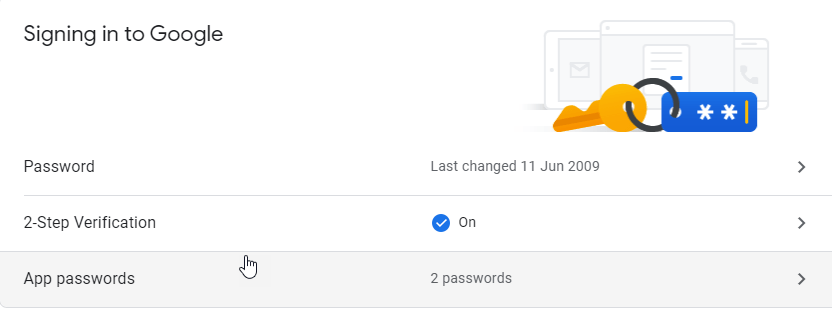
  2. Click on Manage your google account
  3. Go to Security.

4. Click on App Passwords to generate the app password (Need to enable 2-Step Verification first).

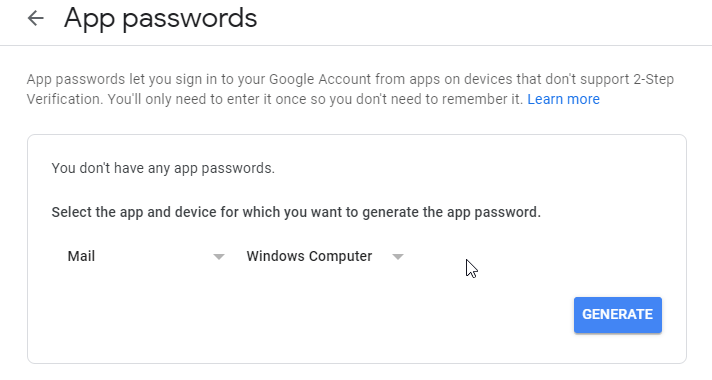
5. Select the required App and Device as below

6. Click on Generate to generate the App Password and you will get as follows

Now go back to business central SMTP Setup and key in this App password instead of regular passwords.

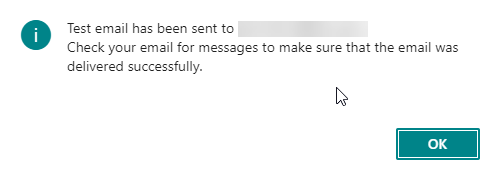
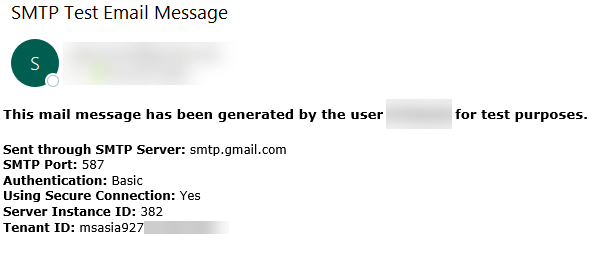
Now again test the email setup and you will happy to see this message and email.

Email in you inbox

Hope this will help you…

Stay tuned for more…

How to Prepare Opening balance template in Business Central

One of nice feature of business central for opening balance.

This will help one to have readymade template of opening balance with ledger account where in one can key in amount and post or even export in excel and after key in values import back to Business Central and post

Hope this small link will help to prepare opening balance as this gives template with ledger account.

Stay tuned for more..

Business Central :How to Customize Base App

This blog explains how to customize the base app of business central (old fashion) .

Please Don’t customize the base app, Use extension wherever possible

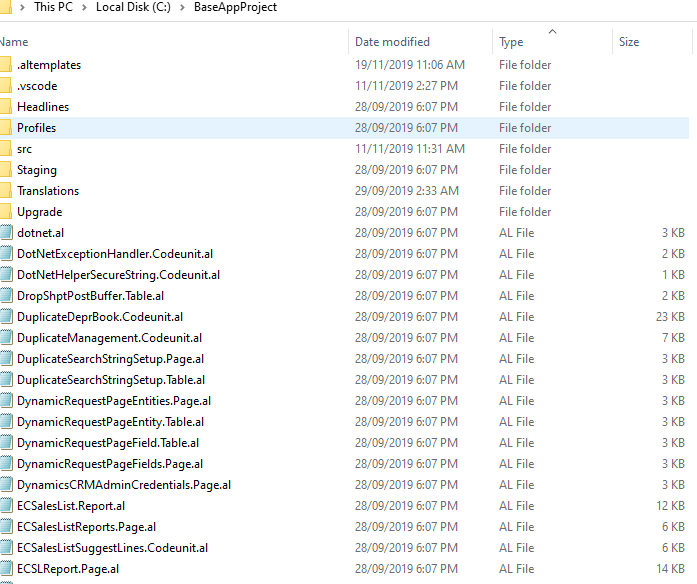
Step 1 :- Copy Base Application from installer

Step 2 :- Unzip in designated folder .This contains app.json file where in target set to onprem

app.json will look like this

Step 3 :- Download the symbols

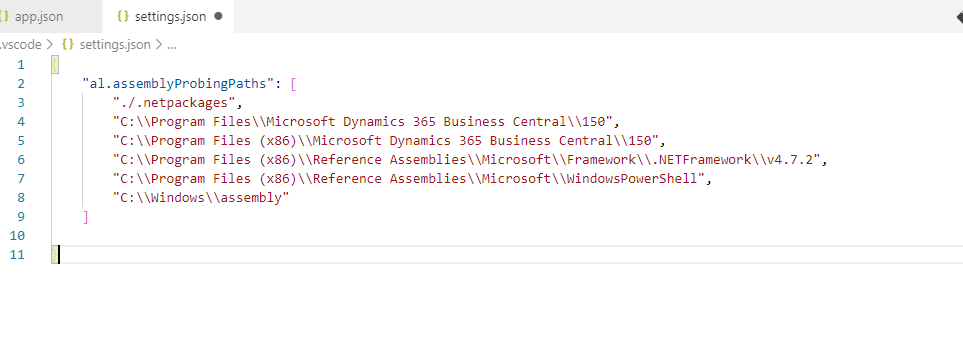
Step 4:- Add the following in either user settings/workspace settings . This is required for .NET DLL used in application

Step 5 :- Unpublish the base application and dependencies or else you will get an error stating that extension already deployed on tenant

Use following PowerShell command

Unpublish-NavApp -Name “Base Application” -ServerInstance BC150

Step 6:- Import license file and publish the modified app.

Hope this will help you.