🧩Fixing “Missing appid on table extension metadata” Error in Business Central

Recently while running a tenant synchronization in Microsoft Dynamics 365 Business Central (on-prem), I encountered an error during the Sync-NAVTenant process:

This error typically occurs during tenant synchronization and can halt your deployment or upgrade process. The issue stems from corrupted or incomplete metadata in the app schema snapshot table, specifically related to table extensions.

The error indicates that the $ndo$navappschemasnapshot system table contains table extension records that are missing the required appid field. This can happen due to:

  • Incomplete app installations or uninstallations
  • Failed upgrade processes
  • Database corruption during extension deployment
  • Manual modifications to extensions without proper cleanup.

The Solution

The fix involves cleaning up the corrupted table extension metadata from the schema snapshot table. Here’s the SQL query that resolves the issue:

USE [YourDatabaseName]
GO

DELETE FROM [$ndo$navappschemasnapshot] 
WHERE (istableextension = 1)
GO

4. Start the Service and Sync

Restart the service and perform the tenant sync:

Use Powershell

Start-NAVServerInstance -ServerInstance YourInstanceName
Sync-NAVTenant -ServerInstance YourInstanceName -Mode Sync

The “Missing appid on table extension metadata” error can be frustrating, but it’s usually straightforward to resolve with the SQL cleanup approach. Remember to always backup your database before making direct SQL modifications and test the solution in a non-production environment first.

If you face a similar issue during tenant sync or app upgrade, this SQL cleanup should help you recover quickly.


Protecting Sensitive Data Made Easier: Introducing ‘Concealed’ Text Field Type in Business Central Wave 2 2025

Data privacy and security have become paramount concerns for businesses across all industries. With increasing regulatory requirements and growing awareness of data protection, organizations need robust yet user-friendly solutions to safeguard sensitive information. Microsoft’s Dynamics 365 Business Central Wave 2 2025 introduces a game-changing feature that addresses this challenge: the new ‘Concealed’ text field type with the innovative Mask Type property.

The Challenge: Balancing Security and Usability

Traditionally, we faced a dilemma when handling sensitive data fields. The existing ExtendedDataType = Masked property offered security by displaying field values as dots, but this approach had limitations:

  • Always hidden: Once masked, the data remained permanently concealed, even from authorized users
  • Poor user experience: Users couldn’t verify entered data, leading to potential input errors
  • Limited flexibility: No option to reveal data when legitimate access was needed

These limitations created friction between security requirements and practical usability, forcing developers to choose between protecting sensitive data and maintaining a smooth user experience.

Business Central Wave 2 2025 introduces the new MaskType enum property, revolutionizing how we handle sensitive data display. This property offers two distinct values:

MaskType Values Explained

None (Default)

  • Standard behavior where field values are fully visible in the UI
  • No masking or concealment applied
  • Suitable for non-sensitive data fields

Concealed

  • Field values are hidden by default, appearing as masked dots
  • Users can reveal the actual value through an explicit action
  • An interactive “eye” button appears next to the field for toggling visibility
  • Perfect balance between security and accessibility

Implementing the concealed field type is straightforward. Here’s how to configure it in your AL code:

field(50100; "Sensitive Data"; Text[100])
{
    Caption = 'Sensitive Information';
    MaskType = Concealed;
}

When rendered in the UI, this field will display:

  • Masked dots by default (●●●●●●●●)
  • An eye icon button for revealing/concealing the value
  • Smooth toggle animation between hidden and visible states

Supported Field Types

The MaskType = Concealed property works with:

  • Text fields: For sensitive textual information
  • Code fields: For confidential codes and identifiers
  • Decimal fields: For sensitive numeric values with decimals
  • Integer fields: For confidential whole numbers

Supported Page Types

The concealed functionality is available on:

  • Document pages: Sales orders, purchase orders, etc.
  • Card pages: Customer cards, vendor cards, item cards
  • Not supported: List page repeaters and grid controls

The introduction of the ‘Concealed’ text field type with the MaskType property in Business Central Wave 2 2025 represents a significant advancement in data protection capabilities. This feature successfully bridges the gap between security requirements and user experience, providing organizations with a flexible, user-friendly approach to protecting sensitive information.

Stay tuned for more.

Preview environment for Dynamics 365 Business Central 2022 release wave 2 (BC21)

Public preview for Business central wave 2 (BC21) is available now

You can create preview version from SAAS version.

You will get more information about major updates from following

https://docs.microsoft.com/en-us/dynamics365/business-central/dev-itpro/administration/update-rollout-timeline

Stay tuned for more updates and lets start explore new features from new version.

Cheers…

How to export data using TextBuilder in Business central.

Today we will see how we can data from business central table using new data type Text Builder.

To check how this data type work build small program as below which pick up data from customer table and export the data in text file.

pageextension 50101 CustomerMasterExtension extends "Customer List"
{
    actions
    {
        addlast(General)
        {
            action(DataExport)
            {
                Caption='Data Export to Text';
                ApplicationArea=All;
                PromotedCategory=Process;
                Promoted=true;
                Image=ExportDatabase;
                trigger OnAction()
                var
                CustomerMaster :Record Customer;
                Tempblob:Codeunit "Temp Blob";
                TextFileBuilder :TextBuilder;
                FileName:Text;
                InStreamData:InStream;
                OutStreamData:OutStream;
                begin 
                    FileName:='CustomerData.Txt';
                    TextFileBuilder.AppendLine('Customer No'+','+'Customer Name'+','+'Balance');
                    If CustomerMaster.FindSet() then repeat
                        CustomerMaster.SetAutoCalcFields(CustomerMaster.Balance);
                        TextFileBuilder.AppendLine(CustomerMaster."No."+','+CustomerMaster.Name+','+Format(CustomerMaster.Balance));
                    until CustomerMaster.Next()=0;
                    Tempblob.CreateOutStream(OutStreamData);
                    OutStreamData.WriteText(TextFileBuilder.ToText());
                    Tempblob.CreateInStream(InStreamData);
                    DownloadFromStream(InStreamData,'','','',FileName);
                end;
            }
        }
    }
}

If you look at the above code it is taking required data from customer table and export the data in text file as below.

To get more insight of data type have a look at MS documentation from below link

https://docs.microsoft.com/en-us/dynamics365/business-central/dev-itpro/developer/methods-auto/textbuilder/textbuilder-data-type

Hope this will help you.

Stay tuned for more.

How to change primary key in Business Central Table

Recently one of my customer asked me to add few more fields on primary key and I was looking at the customer like he asked something which is daunting task to be done with business central as everybody aware of that we can not change the primary key fields when table is already having data as while deploying the app it throws an error as below

Even I tried using Force sync also but it is still failing to deploy the app as this is breaking change for the app.

Now question is how to do this and overcome from such situation as your customer is behind you to do that.

To make it work we need to use ObsoleteState and ObsoleteReason that means we need to make your table obsolete and create a new table with new primary key and change the references in all those object where the object is referred.

To make the table obsolete mention the property as below.

Obsolete property value

ValueDescription
NoNot obsolete. This is the normal/default setting.
PendingWill become obsolete in a future version.
RemovedHas been made obsolete.

After making above table obsolete created new table with the new primary key.

Next point is how to transfer data in the new table .

To transfer data from obsolete table to new table used Installed code unit . Additionally you can use temporary table to update data from old table to new table.

If you would like to learn more about ObsoleteState Property then visit here.

Hope this will help you.

Stay tuned for more updates.

What is planned for Business Central Wave 2 2022 release

As we are gearing up for new release of business central and already the buzz is started for new version . Here I will list few upcoming features which I am looking forward in new version.

In-Client Performance Profiler

Demo tool and demo data for manufacturing scenarios

Users can export report datasets to XML

Introduce copy link option in the Share menu

Guided tour that helps users find settings and personalization tools

Support for rich text in teaching tips and tours

New capabilities for financial reporting with account schedules

Use Excel to design layouts for reports

Permission set handling enhancements

For more details please visit on my twitter or here

How to discover reports and administration in business central role explorer

With the release of Business Central Wave 2 2021 aka BCV19 lot of new features has been added to make life easier of developer and/or customers.

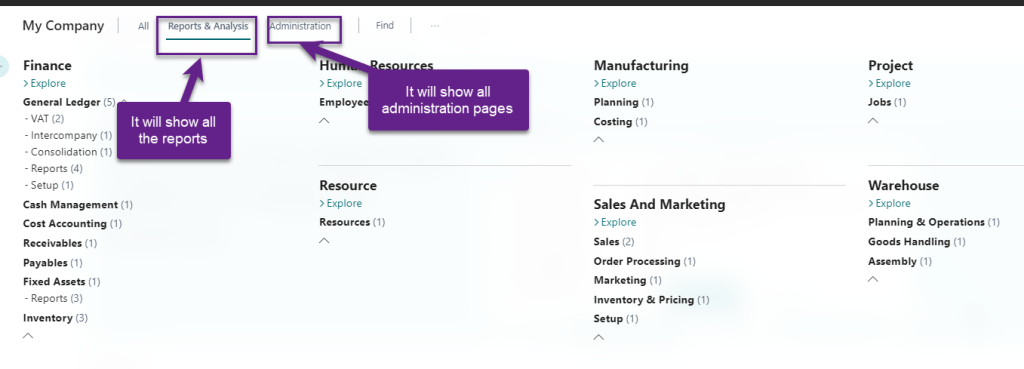
One of new feature added in business central V19 for role explorer where in one can explore all the reports and other screens.

There is new button added on Business Central V19 as below

Once you click on this button all the modules will be displayed irrespective of assign role center.

There are few more options once you click on Explore More roles where in you can filter for reports or administration pages.

With this new features you can find all the reports or administration pages at one place efficiently.

Hope this will help to find the reports.

Stay tuned for more.

Non-Inventory Items and Locations

With the release of Business Central Wave 2 2021 aka BCV19 lot of new features has been added to make life easier of developer and/or customers.

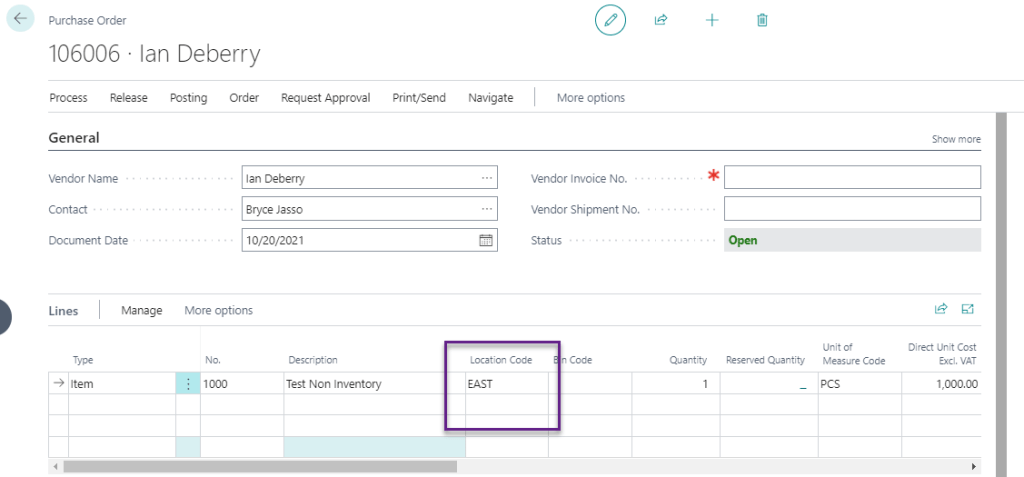
Now from business central V19 onwards we can select location code for non-inventory items and it was having issue till version 18

Let See how to create Non Inventory Items

Go to Item Card

While creating Item select type as Non-Inventory. If the item is noninventory then Inventory Posting Group is disabled.

Let see how it works in Transaction.

Once you post this transaction then it will store the cost in Cost Amount(Non-Invtbl).

All these location will be copied to ledger entries.

Hopefully this will help you.

Stay tuned for more.

What’s New in Business Central Wave 2 2021

Do you remember this post of mine where in I mention Microsoft hosting an event for launch of Business Central Wave 2 2021.

Yesterday this event gone live and all the recordings are available to view till 31st December 2021.As like the most event this event is not live and all sessions are recorded and there will be no chat room or live Q & A sessions.

You can view the session by registering here  Join the Event and it will redirect you to following screen to register

Just register yourself and get the more details insight of features implemented in business central wave 2 2021 by going through above sessions.

I just gone through few session and found it very well explained and looking forward for all other sessions.

Stay tuned for more..

App Installation Permission Denied in Business Central

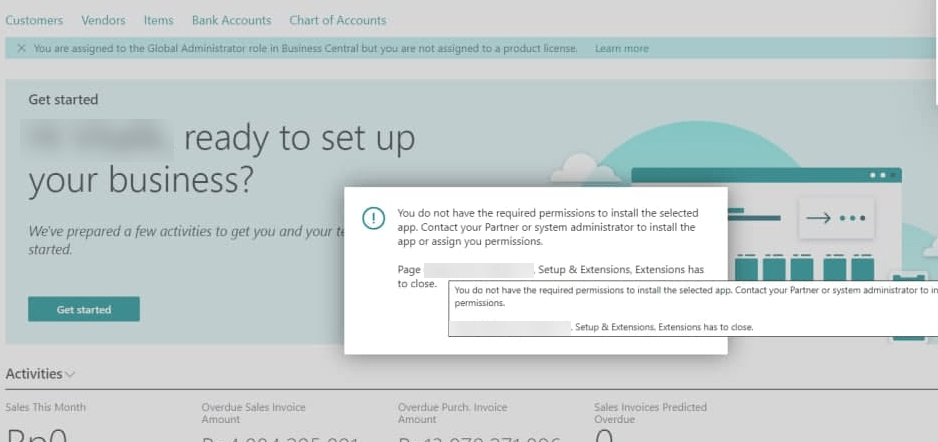
Yesterday we were installing PTE app on production environment and it throw an error as below.

We are juggled by seeing this message and thinking why it is showing an error message when we are uploading extension by using administrator login which is global administrator.

To overcome this error there is new permission set has been introduced in business central wave 1 2021

EXTEND. MGT. – ADMIN

You need to assign the above permission to install the app as below.

Hopefully this will help

Stay tuned for more.