How to Implement Interface in Business Central

With the release of Business Central Wave 1 2020 new feature was introduced called ‘Interface’. It is basically syntactical contract that can be implemented by a non-abstract method. This allows for writing code that reduces the dependency on implementation details, makes it easier to reuse code.

Today we will see how to write an interface and implement in Business central.

For defining interface we no need to have object id.

If you can see in above interface we just define method but not programmed any business logic.

Now Lets see how to implement interface.

Added new code unit which implements the defined interface.

For checking the result of interface created following page with one function.

Above function to initialize the interface.

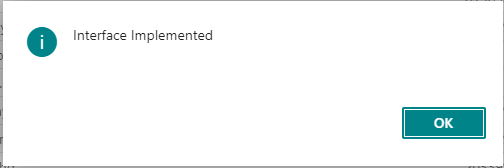
Lets check the result of interface.

Hope this will help you to understand interface and implementation.

To understand more on differentiate between events and interface read Interface Vs Events..

Stay tuned for more…

How to bookmark Page/ Report in Business Central

Today just one simple feature for business central. If you remember correctly in classic version we had ability to add shortcut for your favorite screens or report

Now in business central also we can do that by bookmarking them for easy navigation.

How to do that

Hope this will help

Stay tuned for more..

How to view database locks in business central

Do you remember this screen from classic client where in we can find who has locked whom.

Once we get blocking id then we try to kill those sessions using sql command .

How to view such detail in business central.

This view detail information like which object id and which function is causing the database locks.

Hope this will help you.

Stay tuned for more updates.

How to View Table data in Business Central

While working in C/AL we have leverage to see the table data from object designer itself but how we can view it from business central.

There are different ways like we can mention the table in launch.json or we can construct the string in web browser to display the details.

Following small video will help you to view from web client itself.

Hope this will help you all..

Stay tuned for more…

How to Create enum in Business Central

With the release of Business Central 2020 Wave 1 lot of new features has been added to make product more prominent.

Today we will see how to create enum in business central and use in table.

Step 1 :- Create enum as follow

Extensible :- If it is set to true then enum can be extended.

Step 2 :- How to use in table

As far as business central lot of enum has been added for options field.

How to extend enum in business central

Difference between enum and options

Hope this will help you..

Business Central : enum vs Options

With the release of Business Central 2020 Wave 1 lot of new features has been added to make product more prominent.

Though this concept of ENUM was introduced earlier but from new version onwards most of the option fields are available as extensible enum such as follows that means option fields goes away from table.

Based on few queries received thought lets write down few difference between enum and option.

EnumOption
An enumeration type, also known as an enum in programming, is a keyword used to declare a type that consists of a set of named constants. The list of named constants is called the enumeration list. Enums can be used as table fields, local and global variables, and parameters.In the OptionString Property of the field or variable, you can enter the option values as a comma-separated list. The Option type is a zero-based enumerator type, which means that the option values are assigned to sequential numbers, starting with 0. You can convert option data types to integers.
To declare an enum in AL you must specify an ID and nameTo define option need to add value as comma-seprated list
Enum with extensible property set to true can be extendedTo extend option value need to modify the base table and add the required value
How to define enum
enum 50110 MyList
{
    Extensible = true;
   
    value(0; None) { }
    value(1; First) { }
    value(2; Second) { }
    value(3; Third)
    {
        Caption = ‘My List’;
    }
}
How to define option
field(2; OptionField; option)
{
    OptionMembers = “Option with “, “spaces and “, “other symbols!”;
}

To extend the standard enum from base product visit here

Stay tune for more..

How to extend enum in Business Central

With the release of Business Central 2020 Wave 1 lot of new features has been added to make product more prominent.

Though this concept of ENUM was introduced earlier but from new version onwards most of the option fields are available as extensible enum such as follows

If define enum is extensible then we can add more option values in that field.

How to add the new option value in existing enum field.

First create extension for enum as below

To check the value just added one action button as below

To check the output publish the app and check

Select the document type and check the result as follows

Hope this help you…

Stay tuned for more..

How to get Table Information in Business Central 2020 Wave 1

With the release of Business Central 2020 Wave 1 lot of new features has been added to make product more prominent.

One of the future added is to get all table information such as no of records, size in KB etc.

If you remember correctly in old version we have same screen which shows all the relevant information regarding tables as below

How to get same screen in business central

Hope this will help you to have information

Stay tuned for more.

Business Central : Deprecated and Obsolete Fields

With the new version of business central wave 2 ,number of fields have been deprecated or obsolete

1) Fields moved to an extension by Microsoft

2) Fields marked as Obsolete:Pending

3) Fields no longer in use in Microsoft code

Impact of this is to refactor your solution as soon as possible

For more information of which field get deprecated visit this link Deprecated Fields

Hope this will help you…

How to Set Company Badge in Business Central

For earlier blog post on business central you can follow the  Link

This blog post explains how to set company badge in business central wave 2 . With this new feature one can add a customized badge in the top right corner from which we can identified company name.

Only four characters are allowed for key in and display.

If a company badge is defined, then you cannot change the company name

Hope this will help you and keep exploring.