This is one of new feature going to be in October release of Business central.
On Sales transaction user need to select the line type such as Item, G/L Account ,Fixed asset etc. but sometime users says can we have default type as Item on every new sales orders rather than selection .
With upcoming business central version it is possible to set default line type as setup.
Go to Sales & receivables setup and select document Default line type as below
Select the desire value from dropdown list and go to sales order to create new transaction.
May be this small change will make difference for end users
Stay tuned for more features for upcoming versions.
As we are gearing up for new release of business central and already the buzz is started for new version . Here I will list few upcoming features which I am looking forward in new version.
With the release of Wave 1 2021 lot of new feature introduced . One of the new feature is that partners now can add keys in base table with customized field which was not possible earlier
Today we will see how we can do that
First Lets see what is happening is earlier version of business central. In earlier version we can only add the keys with the field added on table extension and we are not able to see the field available in base table for adding in keys
Look at the following example as I created one simple extension in V17 and trying to add key
Now when I try to add the keys in this table extension it will populate only those fields which are added in table extension
In New version of Business central i.e. Wave 1 2021 we can Add more keys with base table fields and use to improve the performance while retrieving or updating records
Now look at the following example for new version .Just created a simple table extension
Now when I try to add the keys in this table extension it will populate all the fields available in base table as below
So that means we can create keys with
Fields from base table
Fields from table extension
Can I create combination of fields from base table and fields from table extension ?
And the obvious answer is no and reasons are simple that both base table and table extension are two different tables in Sql server.
Recently Microsoft releases plan for major version of Microsoft Dynamics 365. This blog post actually focused on those features which I am looking forward to and may be every one in community.
Lets Start
Partners can add keys to base tables and table extension
Does anybody remembered this points which I raised in year 2017 on GitHub and finally this is going to add in April 2021 and I am looking forward to it as it is not supported and I have restructure the app.
Report Extensibility
This feature is everybody awaiting because if we need to change in any base app report then we need to copy that report ,make changes and use report substitution to display the customize report. Looking forward for new report extension object where in one can change layout and dataset.
Dimension Correction
In Year 2016 I wrote this blog post for updating the dimension and not it is going to be add as feature in Business central. This will help end users for updating the incorrect dimensions.
Above all it from April 2021 onwards Business Central will be available in India
Apart from above lot of new features are added in upcoming version of business central
If you would like to add documentation to your code then you can use XML documentation .The documentation comment must immediately before the object such as codeunit,table,functions etc.
The syntax for adding XML comments in your code is triple slashes /// followed by one of the supported XML tags. There is IntelliSense support for writing documentation comments. Most importantly providing a template documentation comment when writing the third slash in the triple slash.
These documentation comments are visible when hovering over source symbols.
Advantage :
XML document comment will improve readability ,add useful information about the code implementation and help others take over your code .
With XML comments it also enable intellisense in AL objects that you add in your code as a help to other developers who is going extend your code.
Let sees an example how we can add the xml comments.
Created one simple code unit where we can add documentation comments.
Please note that If you have the showMyCode setting in the app.json file set to false and download an app package; the app package will not contain any XML comments.
With the release of Business Central Wave 1 2020 new feature added to delete the extension data from production or sandbox. Prior to that we can uninstall the extension but data still there for the extension.
This feature will be useful when
1) Application is not in use.
2) Customer have desire to reinstall the extension data from scratch.
Let see how to uninstall and delete the extension data.
1) Launch the business central and search for extension management.
2) Select the required extension for uninstall. In this you can see new option added for delete extension data .
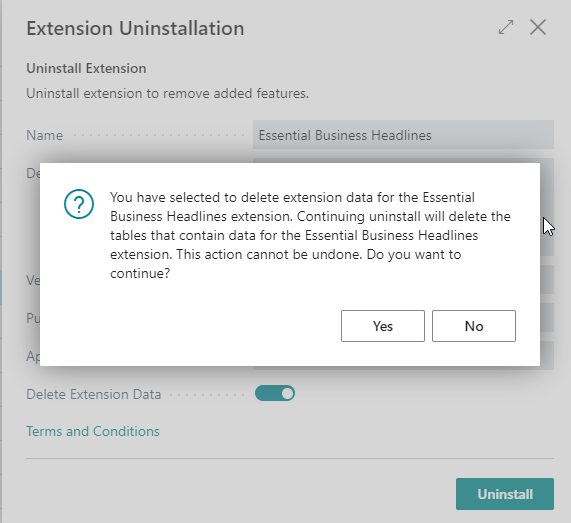
3) After selecting the option then you will get following warning message.
4) After click ‘YES’ then you can see ‘Delete Extension Data’ will get enable as follows
5) After that you can click on Uninstall then system will again warn before starting deleting data from extension.
6) If you are sure then click ‘YES’ and it will start processing to delete the data. This can not be undone.
The partial records capability is allows for loading a subset of normal table fields when accessing the data source based on SQL.
To access the data source we use GET ,FIND NEXT. When we use these methods then runtime it load all fields and will hamper the performance while fetching the records.
Now from business central wave 2 2020 we can use ‘Partial records’ capability.
To accommodate partial records following methods available in business central. These methods are avaaible on RecordRef and Record datatype in AL. These methods are loaded in two groups i.e. Subsequent loads and Current load
Method
Description
SetLoadFields
Specifies a set of fields to be initially loaded when the record is retrieved from its data source.
AddLoadFields
Adds fields to the current set of fields to be initially loaded when the record is retrieved from its data source.
AreFieldsLoaded
Checks whether the specified fields are all initially loaded.
LoadFields
Accesses the table’s corresponding data source to load the specified fields.
Lets See few examples of these methods
Following example is for summation of Quantity fields from Item Ledger Entry .In this we would like to make calculation of only Quantity fields and not require the others fields to be loaded.
If you see SetLoadFields is call before data fetching operation starts. This will determine which fields needed for Find Set Call.
Advantage of this is that it gives you ability to load only those fields which are required to perform the operation which will make execution of code faster and give more performance. This feature is recommended to use while fetching the records and not for Insert,Modify or Delete operation.
Using the above method we added the required fields but what will happen to other fields which hasn’t been loaded .In such cases platform does an implicit GET and loads the missing fields, called as JIT Loading (Just in Time).
When JIT loading occurs, another access to the data source is required. These operations tend to be faster because they’re GET calls. GET calls can often be served by the server’s data cache or become clustered index seeks on the database.
Iterating over records in the database, enumerator is created based on selected fields and row is fetched when NEXT is called. but certain operations will not follow enumerator like if we passing a record by value and not by VAR .This operation actually creates new copy of the record and original records and copy of the record not share the filters ,selected field for loading. That means to access unloaded fields it need to trigger JIT load and but it will not update enumerator which means for future iterations also require JIT load.
To overcome such situations we can do following
Pass the record reference using VAR.
Call AddLoadFields on the original records before passing by value.
Use SetLoadFields before calling FIND,GET,NEXT.
Hope this will help you to understand for partial records and stay tuned for more updates.
For more updates you can follow my blog on following channels.
Recently I encounter this issue as one of the customer would like to set up Gmail as service provided for SMTP mail in business central.
So I started the regular way how we started setting up SMTP and encounter the following issue.
Initial Setup :-
Did the initial setup with required details and while key in I key in the regular password which used while signing in Gmail.
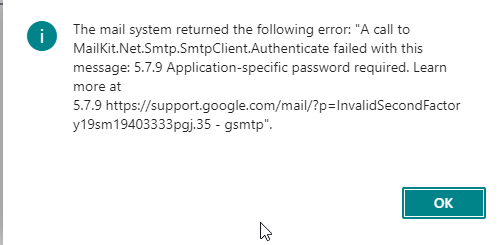
When I click to Test Email setup and encounter the following error.
Now question is how get over this issue as it is something like you have entered some wrong password and you are getting this issue. After investing some hours I found the crucks for this issue as we need to generate App Password
This issue is encounter because of the Gmail security which required to authenticate the app which is going to use Gmail id.
To do this we need to do following
Sign in your Gmail account which you are using in business central.
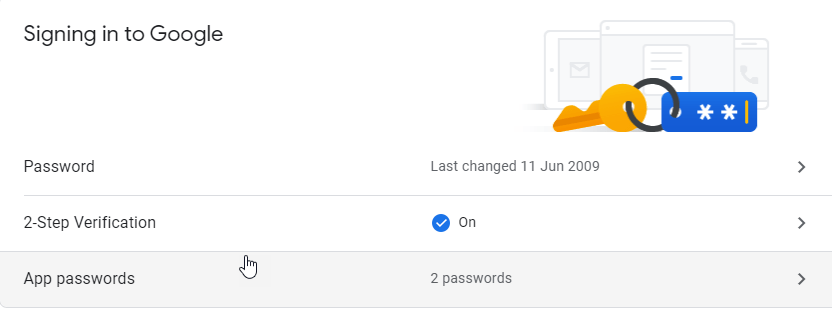
Click on Manage your google account
Go to Security.
4. Click on App Passwords to generate the app password (Need to enable 2-Step Verification first).
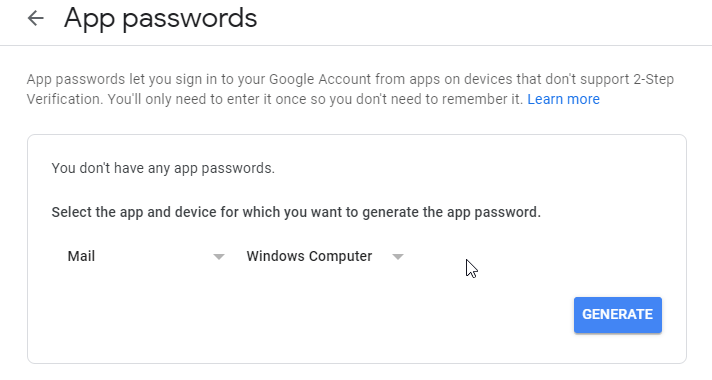
5. Select the required App and Device as below
6. Click on Generate to generate the App Password and you will get as follows
Now go back to business central SMTP Setup and key in this App password instead of regular passwords.
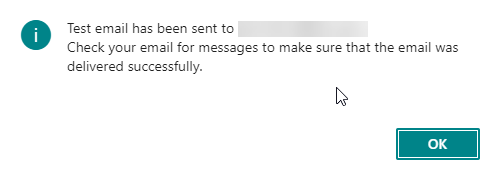
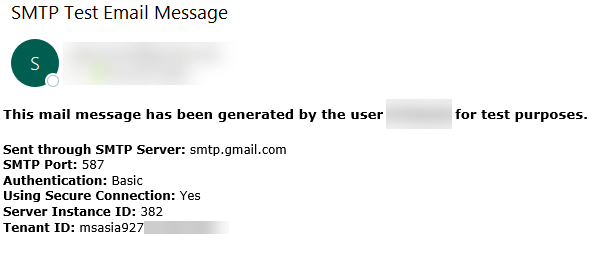
Now again test the email setup and you will happy to see this message and email.












 Ammolh Saallvi Blog