Microsoft Business Central 2021 Wave 2 released

Microsoft releases business central 2021 Wave 2 (BC 19) on 1st October 2021 .

This version is available on

  1. Cloud
  2. On Docker
  3. On Premise

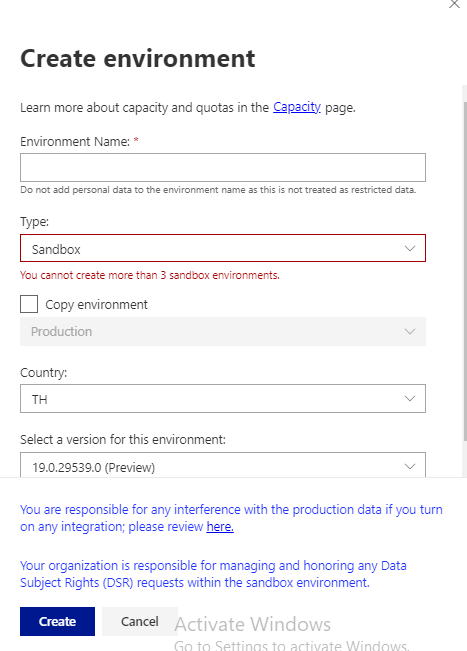
To check I tried to create new sandbox on cloud environment and it is readily available on my region too,.

Apart from this to get more detail and understanding on new version Microsoft already scheduled a launch event with breakout session .You can register here Business Central Launch Event

For On premise version you can download from following link

Business central On-Premise Version Download

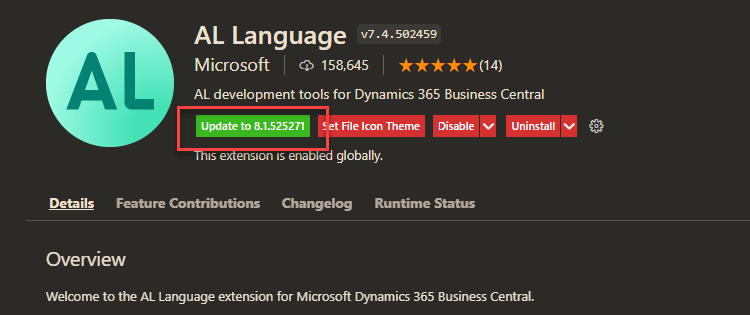
New Version for AL language also available to update.
Stay turned for more updates and keep exploring..

How to modify table data in business central

This week one of the customer post few transaction and found that one of the field user enter some wrong information. In ideal situation user need to reverse the transaction and post correct transaction which is safest approach.

But do you remember those old days where we have access to the table and can modify the data but with business central this ability no more available . I just build one small extension to modify the data in the table where in we can modify the posted data .

Important: It is not recommended to change data in the tables directly as it will cause inconsistency in database and make database vulnerable.

Just check following video to check small amount of work I did.

Additionally I found blog from Volodymyr Dvernytskyi for Data Editor .Please have a look into it.

Let me know your feedback.

How to Extend Preview Posting in business central

Do you know one of the great feature provided by Navision called as Preview posting.

When posting journals or documents with a large number of entries, accountants want to make sure that the posting will be correct beforehand. Previewing the posting helps prevent the need for corrections, making accountants more productive.

In upcoming version of Business Central Wave 2 2021 preview posting is extended to show more details and it is also setup based.

To setup the preview posting navigate to General Ledger Setup

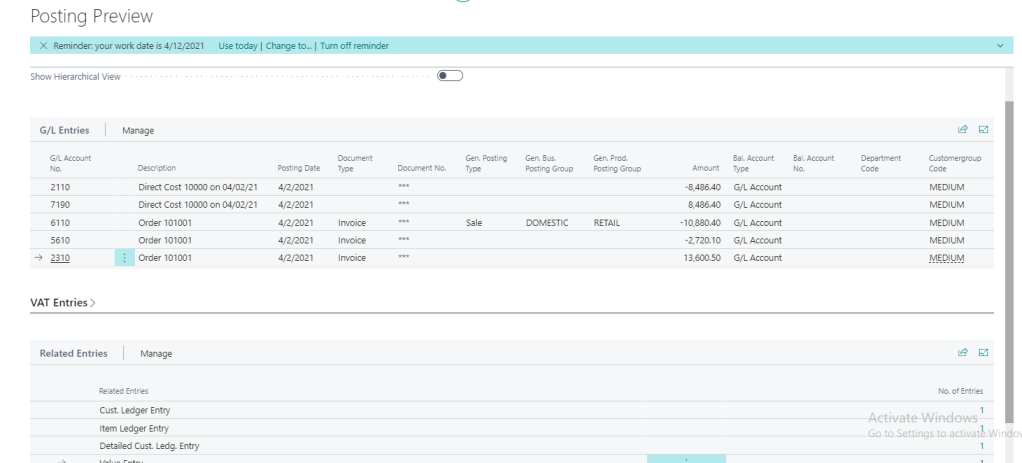
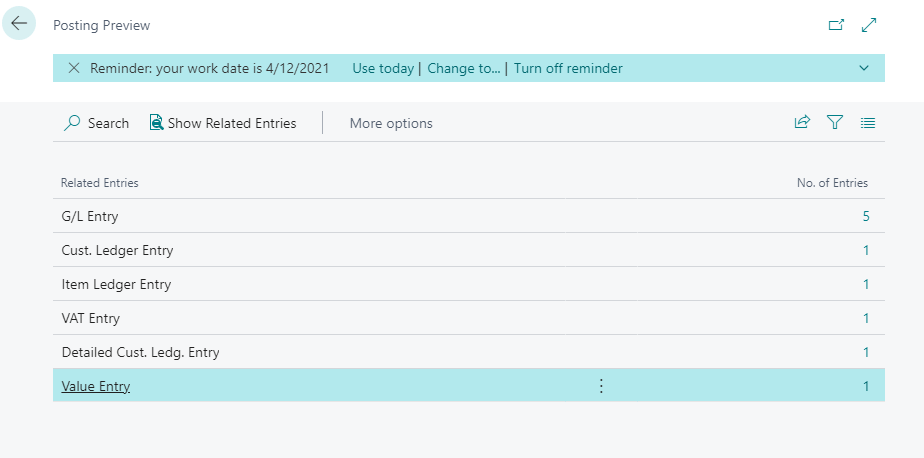
If Posting preview type is selected as standard then it gives an overview of entries group by type.

Posting Preview type :- Standard

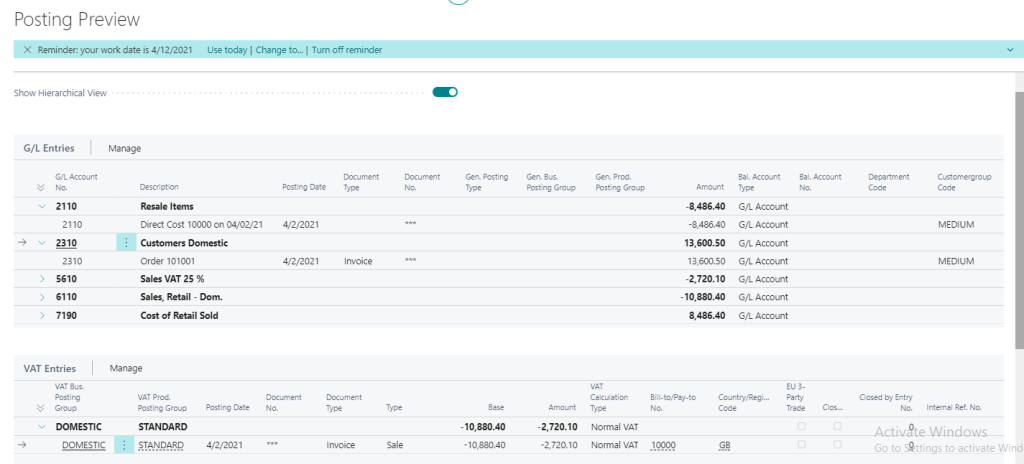
Posting preview type :- Extended

In the above screenshot one more option provided to see the Hierarchical View

After selecting the option Show Hierarchical View

Hopefully this feature will help accountant

Stay tuned for more.

Business Central Wave 2 2021 Preview available

The preview of Business Central 2021 Wave 2 (release 19) was released

It is only possible to create Sandbox preview and non-production environments; the preview environments are for demonstration purposes only and to have their functionality tested, they are removed at most thirty days after the official release of the product.

Now lets get ready to explore new features with Wave 2 2021

Stay tuned for more.

What is planned for Business Central Wave 2 2021 release

As we are gearing up for new release of business central and already the buzz is started for new version . Here I will list few upcoming features which I am looking forward in new version.

Following features I am looking forward.

Richer access control for extension source in cloud environments

Add additional columns through personalization in various pages to gain more insight

List of trusted partner apps

Profiling AL performance with snapshot debugger

Transactional installation and sync of extensions on-premises

Restarting environments

Unhindered data entry across rows

Decimal separator on numeric keypad matches region setting

Discovering reports and administration areas in Role Explorer

Copying environments of different types

Do let me know yours…

How to check financial journals in background in business central

With the release of Business Central Wave 1 2020  new feature added to check validation in background for financial journals

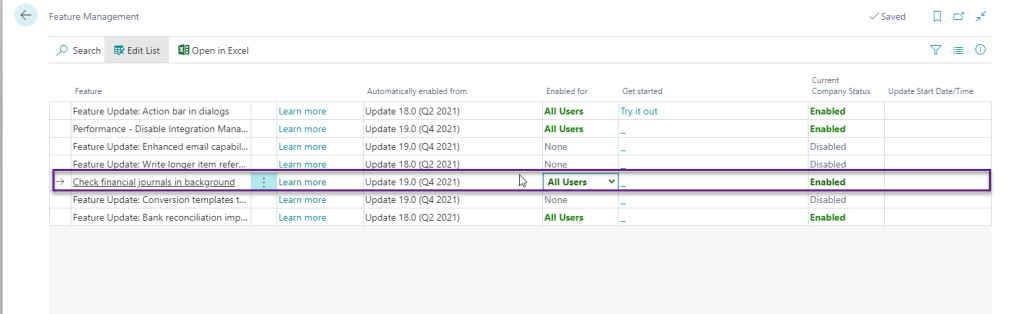
As of now this feature is need to enabled from Feature management

This features will helpful to financial users to check the issue before posting. Before this feature we have Test Report and Preview Posting to check the issues before posting. Advantage of this feature is that this feature is can be enabled for specific batch .

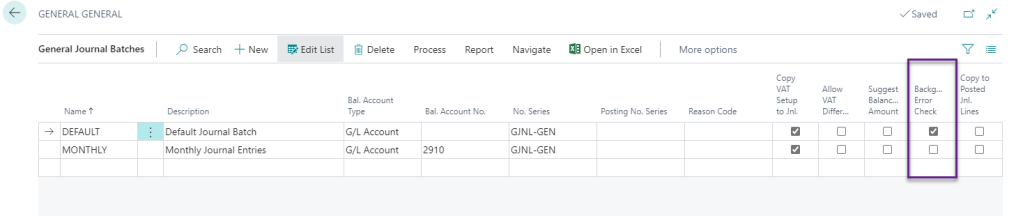
To enable this feature on batch go to General Journal batch and enabled this feature for required batch.

Once this will enabled on batch this will show journal check on journal screen as follows

Enter the transaction in journal and if entry is erroneous then it will show the error as below

For more details of the error you can click Issues total to see the details of issues

Even this factbox shows the the lines which shows which lines are correct and incorrect.

Hoe this will help you to deal with financial journals validation.

Apart from this you can check financial features Copy journal lines to posted.

Stay tuned for more.

How to add XML comments in AL Code :- Business Central

With the release of Business Central Wave 1 2020 XML comments is available in AL code.

If you would like to add documentation to your code then you can use XML documentation .The documentation comment must immediately before the object such as codeunit,table,functions etc.

The syntax for adding XML comments in your code is triple slashes /// followed by one of the supported XML tags. There is IntelliSense support for writing documentation comments. Most importantly providing a template documentation comment when writing the third slash in the triple slash.

These documentation comments are visible when hovering over source symbols.

Advantage :

  1. XML document comment will improve readability ,add useful information about the code implementation and help others take over your code .
  2. With XML comments it also enable intellisense in AL objects that you add in your code as a help to other developers who is going extend your code.

Let sees an example how we can add the xml comments.

Created one simple code unit where we can add documentation comments.

Please note that If you have the showMyCode setting in the app.json file set to false and download an app package; the app package will not contain any XML comments.

Hope this will help you.

How to Delete extension data in business central

With the release of Business Central Wave 1 2020 new feature added to delete the extension data from production or sandbox. Prior to that we can uninstall the extension but data still there for the extension.

This feature will be useful when

1) Application is not in use.

2) Customer have desire to reinstall the extension data from scratch.

Let see how to uninstall and delete the extension data.

1) Launch the business central and search for extension management.

2) Select the required extension for uninstall. In this you can see new option added for delete extension data .

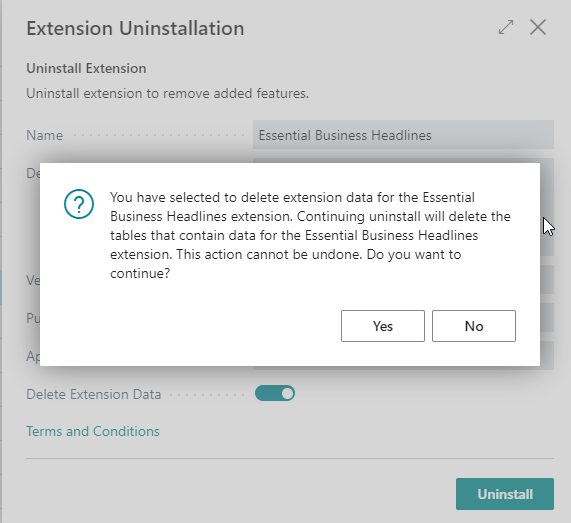
3) After selecting the option then you will get following warning message.

4) After click ‘YES’ then you can see ‘Delete Extension Data’ will get enable as follows

5) After that you can click on Uninstall then system will again warn before starting deleting data from extension.

6) If you are sure then click ‘YES’ and it will start processing to delete the data. This can not be undone.

Hope this will help and stay tuned for more.

If you like my blog then please connect me on

Blog :-https://ammolhsaallvi.blog/

Twitter :-https://twitter.com/ammolhsaallvi

LinkedIn :-https://in.linkedin.com/in/amolsalvi

Use of implicit ‘with’ will be removed in the future :-Business Central

Though above warning was informed by MS long time back but it has introduced in latest version of AL.

With the update of new version of AL extension this warning is populated in AL code.

Once you update above AL language version then you will find below warning

Now this warning will become error in near future that means we need to correct it anyhow . If your app contain more than 100 pages then it will be too much efforts to make it manually and tedious task.

To make it superfast work we have one extension available in marketplace which will help you to resolve it within seconds.

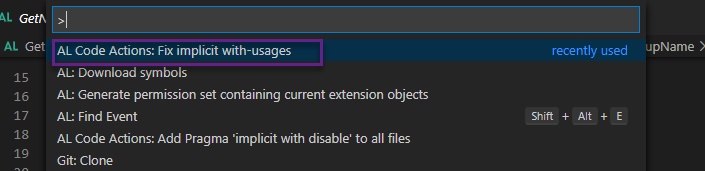
Once you install the extension then Press ‘F1’ and run following command

‘Fix Implicit with usages’

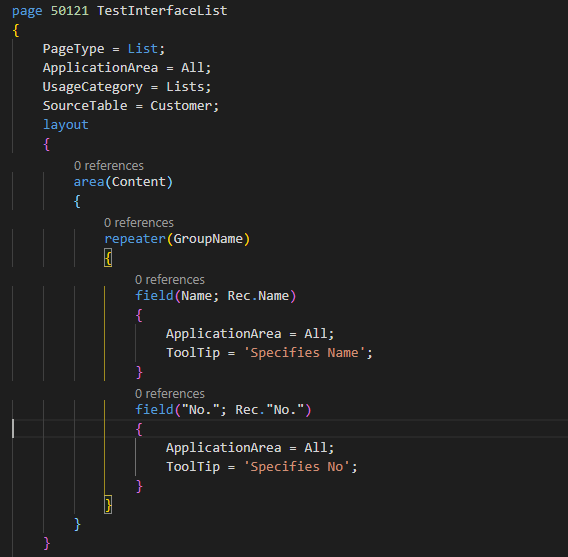
Just have look at the following file

Now run above command and relax as it will fix the warning in all pages.

Result of the file after running command

It will fix the all warning in all the files.

Hope this will help you

Stay tuned for more update

Business Central Wave 2 2020 Released

With the new dawn of 1st October Microsoft released Business Central Wave 2 2020.

This version is available for following

  1. W1 Version
  2. 21 Localized version
  3. India localization in Preview

The product DVD will be downloaded from following URL

Business Central Wave 2 2020

Few features of Business Central you can visit this link

Business Central Wave 2 2020 Features

Stay tuned for more detail