Reopening Finished Production Orders in Business Central v26 (Wave 1 2025)

Microsoft Business Central is constantly evolving, bringing us new features and enhancements with each wave release. One highly anticipated addition in Wave 1 2025 (v26) is the ability to reopen finished production orders. This seemingly simple functionality addresses a long-standing pain point for many manufacturers, offering increased flexibility and control over their production processes.

The Challenge

Previously, once a production order was marked as “Finished,” it was essentially locked. Any necessary adjustments, corrections, or further processing required creating a new production order, leading to potential data discrepancies and cumbersome workarounds. This rigid approach often hindered efficient handling of rework, returns, or unexpected post-production requirements.

The Solution: Reopening Finished Orders

With the v26 update, Business Central introduces the capability to reopen finished production orders.

To reopen a production order, follow these steps:

  1. On the Finished Production Orders page, select the order you want to edit.
  2. Choose the Reopen action.
  3. In the Do you want to reopen the production order? confirmation dialog, choose Yes.

This empowers users to:

  • Correct Errors: If errors are discovered after finishing an order (e.g., incorrect quantity reporting, wrong item consumption), you can reopen the order, make the necessary adjustments, and re-finish it.
  • Handle Rework or Returns: If products need rework or are returned, you can reopen the finished order, register the required adjustments, and complete the rework process within the original order.
  • Add Post-Production Activities: If additional operations or processes are needed after the order is finished (e.g., special packaging, additional quality checks), you can reopen the order and register these activities.
  • Maintain Data Integrity: Reopening the original order ensures a consistent and accurate audit trail, preventing data fragmentation and improving reporting accuracy.

As we approach the release of Wave 1 2025, stay tuned for more detailed information and practical examples on how to leverage this valuable feature.

Unleash Your Workspace: Resizable Fact Boxes Arrive in Business Central v26!

Tired of cramped Fact Boxes? Wishing you could see more detail without endless scrolling? Your wish has been granted! Dynamics 365 Business Central version 26 (2025 wave 1) introduces a much-anticipated feature: resizable Fact Boxes!

For years, Business Central users have navigated valuable contextual information within the FactBox pane. However, the fixed width often led to limitations, especially on larger screens or when dealing with detailed data. Now, Microsoft has empowered users to take control of their workspace.

Say Goodbye to Fixed Dimensions!

With the new resizing capability, you can:

  • Customize Your View: Easily adjust the width of the FactBox pane to suit your needs. Whether you need a narrow view for quick glances or a wider view for in-depth analysis, the choice is yours.
  • Maximize Screen Real Estate: Utilize your screen’s potential by expanding the FactBox to view more information at once. No more unnecessary scrolling!
  • Personalized Experience: Business Central remembers your preferred FactBox size per page and mode, ensuring a consistent and tailored experience every time you return.
  • Simple and Intuitive: Resizing is a breeze! Simply drag the divider line between the main page area and the FactBox pane to your desired width.
  • Quick Reset: If you want to return to the default size, just double-click the divider line.
  • Reasonable Limits: The factbox can be expanded to a maximum of half of the page width.

Why This Matters

This seemingly small change has a significant impact on user productivity and efficiency. By providing greater control over the workspace, Business Central empowers users to:

  • View Information More Effectively: Gain a clearer and more comprehensive understanding of related data.
  • Reduce Scrolling and Save Time: Access crucial information faster and streamline workflows.
  • Enhance User Experience: Create a more personalized and comfortable working environment.

How to Resize Your Fact Box:

  1. Locate the divider line separating the main page area and the FactBox pane.
  2. Click and drag the divider line to your desired width.
  3. Observe the FactBox pane resizing accordingly.
  4. To return to the default size, double-click the divider line.

Looking Ahead

The introduction of resizable Fact Boxes highlights continuous improvement and user-centric design. This feature further enhances the flexibility and usability of Business Central, making it an even more powerful tool for businesses of all sizes.

Business Central and Fonts on Reports

Today morning there was issue raised by my consultant stating that text on business central reports showing weird characters as below.

Though these reports was working well on On-Premise but after uploading to cloud it started showing those weird characters.

After checking report layout found that using the same fonts which is available on cloud version of business central but it still fails.

Why ? What could be the reason.

After checking found that customer created data in local language and to display those we need to have font which support those characters to show and I change the font on report and it showed correctly. (Surprisingly the font I used to show report data it worked properly and show data correctly and even it is not listed in the standard list .I think it depends on your country also)

On your own container you have leverage to install the font by using PowerShell command.

But for cloud please choose font wisely so it will not break your app.

Please see link for Available fonts on business central.

Hope this will help you.

How to kill session in Business Central

Recently faced a problem of table locking which goes in not responding stage and finally user close the tab ,but when user opens the session again it actually messed up the critical data (It seems unimaginable force was roaming that time when this happens). Eventually after trying couple of days for data correction I need to contact Microsoft to restore the database.

When this happening my customer asked me if something like this happen then can we kill or cancel the session of user and then I came across this feature of Business Central admin center.

How to access admin center

This can be by adding tenant id with your business central URL as below

https://businesscentral.dynamics.com/%5BTenant Id]

This will open admin center as below.

In this portal you can see all the environment including sandbox.I can see this is your control center for managing business central on cloud.

Now next step is click on required environment which will navigate to other screen.

To see all the session click on session

This will show you call the required session for the selected environment.

Now to cancel the session select the required session and click on Cancel session .This will kill the required session.

Another advantage of this screen is that it show other information like which operation is going on ,which object is involved in current operation and duration of current operation.

Hope this will help you to cancel the unwanted session

Stay tuned for more..

How to Delete extension data in business central

With the release of Business Central Wave 1 2020 new feature added to delete the extension data from production or sandbox. Prior to that we can uninstall the extension but data still there for the extension.

This feature will be useful when

1) Application is not in use.

2) Customer have desire to reinstall the extension data from scratch.

Let see how to uninstall and delete the extension data.

1) Launch the business central and search for extension management.

2) Select the required extension for uninstall. In this you can see new option added for delete extension data .

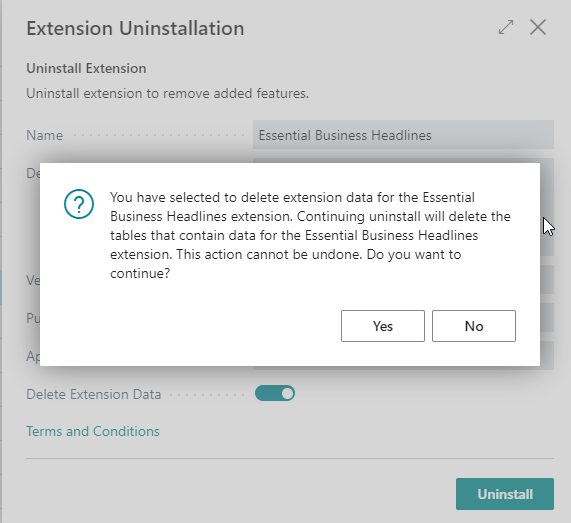
3) After selecting the option then you will get following warning message.

4) After click ‘YES’ then you can see ‘Delete Extension Data’ will get enable as follows

5) After that you can click on Uninstall then system will again warn before starting deleting data from extension.

6) If you are sure then click ‘YES’ and it will start processing to delete the data. This can not be undone.

Hope this will help and stay tuned for more.

If you like my blog then please connect me on

Blog :-https://ammolhsaallvi.blog/

Twitter :-https://twitter.com/ammolhsaallvi

LinkedIn :-https://in.linkedin.com/in/amolsalvi

Business Central Wave 2 2020 Upcoming Features

By writing this I feel that clock is running faster and till the time we are utilizing the features of Wave 1 2020 more new features are planned and about to release in upcoming version Wave 2 2020.

There are plenty of features are planned for Wave 2 2020 but will list here what are the features I am looking for.

  1. Database access intent changed to read-only for frequently used reports As business required faster access to the information so to speed up default database access change to Read-only.
  2. Notify users of high-risk changes in selected setup fields :- This features means we can make list of fields from master table and get notified when someone changes.
  3. Business Central in Microsoft Teams :-Integrate Microsoft team with Business Central.
  4. Page Inspector supports temporary tables :- With this update, the inspection pane now displays valuable record information also for pages that are implemented to use temporary tables. Information about the current record is displayed in a consistent way and is not different from inspecting pages that use physical source tables.
  5. Data audit system fields are added to every table :- Four New Field will be added in every tables to track the transactions log.
    1. SystemLastModifiedOn
    2. SystemLastModifiedBy
    3. SystemCreatedBy
    4. SystemCreatedOn
  6. Attach to user session when debugging in sandbox :-Currently, when you debug with the Visual Studio Code AL debugger, you cannot attach to a user session, making it much harder to troubleshoot issues that are dependent on users and user permissions. This feature enables attaching to an active user session on the sandbox.
  7. Debug extension installation and upgrade code :- It is currently not possible to debug extension install or upgrade code by just adding breakpoints and deploying a new application. Instead, some workaround is required to manually trigger the install and upgrade code, possibly commenting out upgrade tags and so on, making it tedious to properly test install and upgrade during development, as well as to troubleshoot issues.

For More information on Planned features please check this link

What New and Planned for Dynamics 365 Business Central

Hope this will help you

Stay tuned for more updates.

How to find Table Relation in Business Central.

With the release of business central new property is introduced to find the table relation of given field. This property is called as’ Relation’ which returns integer value

Lets see how we can find that .

To make it created one page extension and added one action button to display the value of table of given field.

If you see the highlighted area where in I have used relation property to find table id of CITY field of customer table.

Output of this simple code as follows

Hope this will help you

Stay tuned for more..

Cumulative Update for Business Central Wave 1 2020

Cumulative Update includes all application and platform hotfixes and regulatory features that have been released for Microsoft Dynamics Business Central

Business Central Wave 1 2020 (16.2) :- 16.2

Warning

Before you install a cumulative update in a production environment, take the following precautions:

  1. Test the cumulative update in a non-production environment.
  2. Make a backup of the system or computer where the cumulative update is to be installed.

Stay tuned for more updates…

Cumulative Update for Business Central June 2020

Cumulative Update includes all application and platform hotfixes and regulatory features that have been released for Microsoft Dynamics Business Central

Business Central Wave 2 2019 (BC15) :- CU 15.7

Business Central Spring Release (BC14) :- CU13

Warning

Before you install a cumulative update in a production environment, take the following precautions:

  1. Test the cumulative update in a non-production environment.
  2. Make a backup of the system or computer where the cumulative update is to be installed.

Stay tuned for more updates…

Events vs Interface :- Business Central

While working on new baby ‘Interface’ identified few difference between Events and interface.

EVENTSINTERFACE
Select Events to Subscribe. Subscription optional.All Methods are mandatory defined in interface code unit and need to implement all
Used to react Used to Invoke.
Extensibility for few methods or functionsExtensibility for many methods.
All Subscribers are invokedOnly single code unit is invoked.
Can Invoke Interface.Can bind events.

Hope this will help you..

Stay tuned for more.